# Rapidata Python SDK
# Guides
## Overview
# Rapidata Python SDK
Get humans to label your data in minutes. Create labeling jobs, compare model outputs, and collect human feedback at scale.
```
pip install -U rapidata
```
The SDK has three building blocks: **audiences** (who labels), **job definitions** (what to label), and **jobs** (running it). Below are the common patterns.
---
## Quick example
=== "Image"
```python
from rapidata import RapidataClient
client = RapidataClient()
audience = client.audience.get_audience_by_id("aud_MU1GZYoESyO")
job_definition = client.job.create_compare_job_definition(
name="Example Image Comparison",
instruction="Which image matches the description better?",
contexts=["A small blue book sitting on a large red book."],
datapoints=[["https://assets.rapidata.ai/midjourney-5.2_37_3.jpg",
"https://assets.rapidata.ai/flux-1-pro_37_0.jpg"]],
)
job = audience.assign_job(job_definition)
job.view()
job.display_progress_bar()
results = job.get_results()
print(results)
```
=== "Video"
```python
from rapidata import RapidataClient
client = RapidataClient()
audience = client.audience.get_audience_by_id("aud_MU1GZYoESyO")
job_definition = client.job.create_compare_job_definition(
name="Example Video Comparison",
instruction="Which video fits the description better?",
contexts=["A group of elephants painting vibrant murals on a city wall."],
datapoints=[["https://assets.rapidata.ai/0074_sora_1.mp4",
"https://assets.rapidata.ai/0074_hunyuan_1724.mp4"]],
)
job = audience.assign_job(job_definition)
job.view()
job.display_progress_bar()
results = job.get_results()
print(results)
```
=== "Audio"
```python
from rapidata import RapidataClient, LanguageFilter
client = RapidataClient()
audience = client.audience.get_audience_by_id("global")
job_definition = client.job.create_compare_job_definition(
name="Example Audio Comparison",
instruction="Which audio clip sounds more natural?",
datapoints=[["https://assets.rapidata.ai/Chat_gpt.mp3",
"https://assets.rapidata.ai/ElevenLabs.mp3"]],
)
job = audience.assign_job(job_definition)
job.view()
job.display_progress_bar()
results = job.get_results()
print(results)
```
=== "Text"
```python
from rapidata import RapidataClient, LanguageFilter
client = RapidataClient()
audience = client.audience.get_audience_by_id("global")
job_definition = client.job.create_compare_job_definition(
name="Example Text Comparison",
instruction="Which sentence is grammatically more correct?",
datapoints=[["The children were amazed by the magician's tricks",
"The children were amusing by the magician's tricks."]],
data_type="text",
)
job = audience.assign_job(job_definition)
job.view()
job.display_progress_bar()
results = job.get_results()
print(results)
```
!!! note
The curated/global audiences get you started quickly. For higher quality results, use a [custom audience](audiences.md) with qualification examples.
---
## Core workflow
The SDK is built around three concepts:
**Audience** --- A group of labelers filtered through qualification examples. Use curated audiences for quick starts or create custom ones for higher quality.
[:octicons-arrow-right-24: Custom Audiences](audiences.md)
**Job Definition** --- Configures what you want labeled: the data, instruction, response format, and quality settings.
[:octicons-arrow-right-24: Parameter Reference](job_definition_parameters.md)
**Job** --- A running labeling task. Assign a job definition to an audience, monitor progress, and retrieve results.
[:octicons-arrow-right-24: Quick Start](quickstart.md)
---
## What you can do
| Use case | Description | Guide |
|---|---|---|
| **Compare** | Side-by-side comparison of images, video, audio, or text | [Comparison example](examples/compare_job.md) |
| **Classify** | Categorize data with custom labels or Likert scales | [Classification example](examples/classify_job.md) |
| **Locate** | Point out objects, artifacts, or regions within an image | [Locate example](examples/locate_job.md) |
| **Draw** | Color in objects or regions within an image | [Draw example](examples/draw_job.md) |
| **Select words** | Mark the words of a sentence that match an instruction | [Select Words example](examples/select_words_job.md) |
| **Free text** | Collect free-form text answers from real people | [Free Text example](examples/free_text_job.md) |
| **Rank** | Order a set of images, videos, or texts via pairwise matchups | [Ranking example](examples/ranking_job.md) |
| **Rank models** | Benchmark AI models on leaderboards with human evaluation | [Model Ranking](mri.md) |
| **Continuous ranking** | Lightweight ongoing ranking without full job setup | [Ranking Flows](flows.md) |
## Quick Start
# Quickstart Guide
Get real humans to label your data. This guide shows you how to create a labeling job using the Rapidata API.
The workflow consists of three main concepts:
1. **Audience**: A group of labelers who will work on your tasks
2. **Job Definition**: The configuration for your labeling task (instruction, datapoints, settings)
3. **Job**: A running labeling task assigned to an audience
## Installation
Install Rapidata using pip:
```
pip install -U rapidata
```
## Usage
All operations are managed through the [`RapidataClient`](reference/rapidata/rapidata_client/rapidata_client.md#rapidata.rapidata_client.rapidata_client.RapidataClient).
Create a client as follows:
```py
from rapidata import RapidataClient
client = RapidataClient() # (1)!
```
1. The first time you run this on a machine, it will open a browser window to log in. Your credentials are saved to `~/.config/rapidata/credentials.json` so you don't have to log in again.
Alternatively, authenticate with a client ID and secret from [Rapidata Settings](https://app.rapidata.ai/settings/tokens):
```py
from rapidata import RapidataClient
client = RapidataClient(client_id="Your client ID", client_secret="Your client secret")
```
### Step 1: Get an Audience
The simplest way to get started is with a curated audience:
```py
audience = client.audience.get_audience_by_id("aud_MU1GZYoESyO") # (1)!
```
1. Curated audiences are pre-existing pools of labelers trained on a specific type of task — this is the **Alignment** audience. You can browse the curated audiences and copy their ids from the [Rapidata Dashboard](https://app.rapidata.ai/audiences).
!!! note
The curated audience gets you started quickly, but results may be less accurate than a custom audience trained with examples specific to your task. For higher quality, see [Custom Audiences](audiences.md).
### Step 2: Create a Job Definition
A job definition configures what you want labeled:
```py
job_definition = client.job.create_compare_job_definition(
name="Example Image Prompt Alignment",
instruction="Which image matches the description better?", # (1)!
datapoints=[ # (2)!
["https://assets.rapidata.ai/midjourney-5.2_37_3.jpg",
"https://assets.rapidata.ai/flux-1-pro_37_0.jpg"]
],
contexts=["A small blue book sitting on a large red book."] # (3)!
)
```
1. The instruction shown to labelers. Should be clear and unambiguous.
2. For compare jobs, each datapoint is a pair of items. Supports URLs, local paths, or text.
3. Optional text context shown alongside each datapoint (must match the length of `datapoints`).
!!! tip
If some datapoints fail to upload, a `FailedUploadException` will be raised. Learn how to handle this in the [Error Handling Guide](error_handling.md).
For a detailed explanation of all available parameters (including name, instruction, datapoints, contexts, quality control options, and more), see the [Job Definition Parameters Reference](job_definition_parameters.md).
### Step 3: Preview the Job Definition
Before running your job, preview it to see exactly what labelers will see:
```py
job_definition.preview() # (1)!
```
1. Opens your browser where you can review and adjust the job configuration.
### Step 4: Run and Get Results
```py
job = audience.assign_job(job_definition) # (1)!
job.display_progress_bar()
results = job.get_results() # (2)!
```
1. Assigns the job definition to the audience and starts collecting responses.
2. Blocks until the job is complete and returns the results. You can also monitor progress on the [Rapidata Dashboard](https://app.rapidata.ai/dashboard).
To understand the results format, see the [Understanding the Results](understanding_the_results.md) guide.
## Retrieve Existing Resources
### Find Audiences
```py
# Find audiences by name
audiences = client.audience.find_audiences("alignment")
# Get a specific audience by ID
audience = client.audience.get_audience_by_id("audience_id")
```
### Find Job Definitions
```py
# Find job definitions by name
job_definitions = client.job.find_job_definitions("Example Image Prompt Alignment")
# Get a specific job definition by ID
job_definition = client.job.get_job_defintion_by_id("job_definition_id")
```
### Find Jobs
```py
# Find jobs by name
jobs = client.job.find_jobs("Example Image Prompt Alignment")
# Get a specific job by ID
job = client.job.get_job_by_id("job_id")
# Find jobs for a specific audience
audience = client.audience.get_audience_by_id("audience_id")
jobs = audience.find_jobs("Prompt Alignment")
```
!!! note
The `find_*` can be executed without the `name` parameter to return the most recent resources.
## Complete Example
Here's the full workflow using the curated alignment audience:
```py
from rapidata import RapidataClient
client = RapidataClient()
audience = client.audience.get_audience_by_id("aud_MU1GZYoESyO")
job_definition = client.job.create_compare_job_definition(
name="Example Image Prompt Alignment",
instruction="Which image matches the description better?",
datapoints=[
["https://assets.rapidata.ai/midjourney-5.2_37_3.jpg",
"https://assets.rapidata.ai/flux-1-pro_37_0.jpg"]
],
contexts=["A small blue book sitting on a large red book."]
)
job_definition.preview() # (1)!
job = audience.assign_job(job_definition)
job.display_progress_bar()
results = job.get_results()
print(results)
```
1. Optional — opens a browser preview of what labelers will see.
## Next Steps
- Create [Custom Audiences](audiences.md) for higher quality results
- Learn about [Classification Jobs](examples/classify_job.md) for categorizing data
- Understand the [Results Format](understanding_the_results.md)
- Configure [Early Stopping](confidence_stopping.md) based on confidence thresholds
- Let your [AI agent](ai_agents.md) write the integration code for you — one-line install for Claude Code, Cursor, Copilot, and many more
## Authentication
# Authentication
The Rapidata API uses **OAuth 2.0 / OpenID Connect**. The authorization server is
`https://auth.rapidata.ai`, and its discovery document is published at
[`/.well-known/openid-configuration`](https://auth.rapidata.ai/.well-known/openid-configuration).
For programmatic access (the SDK, scripts, agents) you authenticate with the
**client credentials** grant using a client ID and secret.
## Get credentials
Create a client ID and secret under [Rapidata Settings → Tokens](https://app.rapidata.ai/settings/tokens).
## Programmatic / agent authentication, step by step
For headless or agent-driven use, authenticate with the client-credentials grant:
1. Create a client ID and secret at [Rapidata Settings → Tokens](https://app.rapidata.ai/settings/tokens).
2. Expose them to the SDK as the `RAPIDATA_CLIENT_ID` and `RAPIDATA_CLIENT_SECRET` environment variables, so no interactive browser login is needed.
3. Construct `RapidataClient()` with no arguments — it exchanges the credentials for a bearer token at `https://auth.rapidata.ai/connect/token` and refreshes it automatically.
4. To call the API without the SDK, request a token yourself and send it as a bearer token (see [Direct token request](#direct-token-request)).
## With the SDK
The SDK performs the token exchange for you. Pass the credentials directly:
```python
from rapidata import RapidataClient
client = RapidataClient(
client_id="YOUR_CLIENT_ID",
client_secret="YOUR_CLIENT_SECRET",
)
```
or set `RAPIDATA_CLIENT_ID` and `RAPIDATA_CLIENT_SECRET` in the environment
(useful for headless or containerised runs) and construct `RapidataClient()`
with no arguments. On a workstation, calling `RapidataClient()` with no
credentials instead opens a browser login once and caches the token in
`~/.config/rapidata/credentials.json`.
## Direct token request
To call the API without the SDK, request a token from the token endpoint and
send it as a bearer token:
```bash
curl -X POST https://auth.rapidata.ai/connect/token \
-d grant_type=client_credentials \
-d client_id=YOUR_CLIENT_ID \
-d client_secret=YOUR_CLIENT_SECRET \
-d scope="openid email roles"
# → {"access_token": "...", "token_type": "Bearer", "expires_in": 3600}
curl https://api.rapidata.ai/order/openapi/v1.json \
-H "Authorization: Bearer ACCESS_TOKEN"
```
## Scopes
Tokens are scoped. The SDK requests `openid roles email` by default, which is
sufficient for all SDK operations. Request only the scopes you need. Every
endpoint in the [OpenAPI specification](https://docs.rapidata.ai/openapi.json)
declares the scopes it requires under its `OpenIdConnect` security scheme.
| Scope | Grants |
|-------|--------|
| `openid` | Required for OIDC; identifies the token subject. |
| `email` | Access to the account email claim. |
| `roles` | The account's role claims, which gate API operations. |
| `offline_access` | A refresh token for long-lived sessions. |
## Custom Audiences
# Custom Audiences
Custom audiences let you train labelers with qualification examples specific to your task, resulting in higher quality labels.
## Audience Types
| Audience Type | Speed | Quality | Best For |
|---------------|-------|---------|----------|
| **Global** | Fastest | Baseline | Quick prototyping, simple tasks |
| **Curated** | Fast | Good | Tasks with a known domain (e.g. prompt alignment) |
| **Custom** | Slower initial setup | Highest | Production workloads, nuanced tasks |
The **global audience** is the broadest pool of labelers, ready to work on any task immediately.
A **curated audience** is a pre-existing pool of labelers trained on a specific type of task. It offers better quality than the global audience without requiring any setup.
A **custom audience** filters labelers through qualification examples before they can work on your data. Only labelers who demonstrate they understand your tasks will be included, leading to the most accurate results.
!!! note
You can see the curated audiences along with your own in the [Rapidata Dashboard](https://app.rapidata.ai/audiences).
## Creating a Custom Audience
### Step 1: Create the Audience
```py
from rapidata import RapidataClient
client = RapidataClient()
audience = client.audience.create_audience(name="Custom Prompt Alignment Audience") # (1)!
```
1. Creates a new, empty audience. Labelers join by passing the qualification examples you add next.
### Step 2: Add Qualification Examples
Qualification examples are questions with known correct answers. Labelers must answer these correctly to join your audience.
!!! warning "Review your qualification examples carefully"
Every qualification example with its associated truth must be manually and thoroughly reviewed before use. If an example has a wrong or ambiguous truth value, the qualification process will filter out good labelers who answer correctly while letting through bad labelers who happen to match the incorrect answer — completely inverting your quality control. Always verify that each example has a clear, unambiguous correct answer.
```py
DATAPOINTS = [
["https://assets.rapidata.ai/flux_sign_diffusion.jpg", "https://assets.rapidata.ai/mj_sign_diffusion.jpg"],
["https://assets.rapidata.ai/flux_duck.jpg", "https://assets.rapidata.ai/mj_duck.jpg"],
["https://assets.rapidata.ai/flux_book.jpg", "https://assets.rapidata.ai/mj_book.jpg"],
["https://assets.rapidata.ai/flux_flower.jpg", "https://assets.rapidata.ai/mj_flower.jpg"],
["https://assets.rapidata.ai/flux_store_front.jpg", "https://assets.rapidata.ai/mj_store_front.jpg"],
["https://assets.rapidata.ai/flux_hand.jpg", "https://assets.rapidata.ai/mj_hand.jpg"],
["https://assets.rapidata.ai/flux_traffic_lights.jpg", "https://assets.rapidata.ai/mj_traffic_lights.jpg"],
["https://assets.rapidata.ai/flux_plane.jpg", "https://assets.rapidata.ai/mj_plane.jpg"],
]
PROMPTS = [
"A sign that says 'Diffusion'.",
"A psychedelic duck with glasses",
"A small blue book sitting on a large red book.",
"A yellow flower sticking out of a bright green pot.",
"A store front with 'hello world' written on it.",
"A yellow hand on a black stone.",
"A green, yellow and red traffic light.",
"A plane flying over a person.",
]
for prompt, datapoint in zip(PROMPTS, DATAPOINTS):
audience.add_compare_example(
instruction="Which image follows the prompt more accurately?",
datapoint=datapoint, # (1)!
truth=datapoint[0], # (2)!
context=prompt # (3)!
)
```
1. The items to compare — a list of URLs, local paths, or text strings.
2. The correct answer — must match one of the datapoint items exactly.
3. Additional context shown alongside the comparison (optional).
!!! note
In practice you'd want to add more examples to the audience to improve the quality of the results.
### Step 3: Create and Assign a Job
Once your audience is set up, create a job definition and assign it to the audience:
```py
job_definition = client.job.create_compare_job_definition(
name="Prompt Alignment Job",
instruction="Which image follows the prompt more accurately?",
datapoints=[
["https://assets.rapidata.ai/flux_book.jpg",
"https://assets.rapidata.ai/mj_book.jpg"]
],
contexts=["A small blue book sitting on a large red book."]
)
job_definition.preview()
job = audience.assign_job(job_definition)
job.display_progress_bar()
results = job.get_results()
print(results)
```
## Complete Example
Here's the full workflow — creating a custom audience, adding qualification examples, and running a labeling job:
```py
from rapidata import RapidataClient
client = RapidataClient()
audience = client.audience.create_audience(name="Custom Prompt Alignment Audience")
DATAPOINTS = [
["https://assets.rapidata.ai/flux_sign_diffusion.jpg", "https://assets.rapidata.ai/mj_sign_diffusion.jpg"],
["https://assets.rapidata.ai/flux_duck.jpg", "https://assets.rapidata.ai/mj_duck.jpg"],
["https://assets.rapidata.ai/flux_book.jpg", "https://assets.rapidata.ai/mj_book.jpg"],
["https://assets.rapidata.ai/flux_flower.jpg", "https://assets.rapidata.ai/mj_flower.jpg"],
["https://assets.rapidata.ai/flux_store_front.jpg", "https://assets.rapidata.ai/mj_store_front.jpg"],
["https://assets.rapidata.ai/flux_hand.jpg", "https://assets.rapidata.ai/mj_hand.jpg"],
["https://assets.rapidata.ai/flux_traffic_lights.jpg", "https://assets.rapidata.ai/mj_traffic_lights.jpg"],
["https://assets.rapidata.ai/flux_plane.jpg", "https://assets.rapidata.ai/mj_plane.jpg"],
]
PROMPTS = [
"A sign that says 'Diffusion'.",
"A psychedelic duck with glasses",
"A small blue book sitting on a large red book.",
"A yellow flower sticking out of a bright green pot.",
"A store front with 'hello world' written on it.",
"A yellow hand on a black stone.",
"A green, yellow and red traffic light.",
"A plane flying over a person.",
]
for prompt, datapoint in zip(PROMPTS, DATAPOINTS):
audience.add_compare_example(
instruction="Which image follows the prompt more accurately?",
datapoint=datapoint,
truth=datapoint[0],
context=prompt
)
job_definition = client.job.create_compare_job_definition(
name="Prompt Alignment Job",
instruction="Which image follows the prompt more accurately?",
datapoints=[
["https://assets.rapidata.ai/flux_book.jpg",
"https://assets.rapidata.ai/mj_book.jpg"]
],
contexts=["A small blue book sitting on a large red book."]
)
job_definition.preview()
job = audience.assign_job(job_definition)
job.display_progress_bar()
results = job.get_results()
print(results)
```
## Matching the Job UI with Settings
Qualification examples default to the standard UI for their task type. If
your job uses `settings` to change how the task is rendered (e.g.
`NoShuffleSetting` to keep answer options in order, `AllowNeitherBothSetting`
to add an "Unsure" button), pass the same settings to the example so the
labeler qualifies on the exact UI they will later see.
```py
from rapidata import NoShuffleSetting
audience.add_classification_example(
instruction="How well does the image match the description?",
answer_options=[
"1: Not at all",
"2: A little",
"3: Moderately",
"4: Very well",
"5: Perfectly",
],
datapoint="https://assets.rapidata.ai/email-4o.png",
truth=["5: Perfectly", "4: Very well"],
context="A laptop screen with clearly readable text, addressed to the marketing team.",
settings=[NoShuffleSetting()], # (1)!
)
```
1. Applies the setting as a feature flag on this single example. Use the same
`RapidataSetting` subclasses you would pass to `settings=` on a job or
order (e.g. `NoShuffleSetting`, `MarkdownSetting`,
`AllowNeitherBothSetting`, `ComparePanoramaSetting`). All
`add_*_example` methods accept `settings`.
## Reusing Audiences
Once created, you can reuse your audience for multiple jobs:
```py
audiences = client.audience.find_audiences("Custom Prompt Alignment Audience")
audience = client.audience.get_audience_by_id("audience_id")
job = audience.assign_job(new_job_definition)
```
## Filtered Audiences
A filtered audience is a lightweight subset of an existing audience's
qualified labelers — derived by applying filters on top of the base
audience. No new qualification or recruiting takes place; the filtered
audience reuses the same pool. Use it when you want to target a specific
slice (e.g. by country or language) of an audience that you have already
trained.
### Deriving a filtered audience with `.filter()`
Call `.filter(...)` on any `RapidataAudience` with a list of one or more
filters. The call returns a `RapidataFilteredAudience` — a slim handle
that reuses the base audience's qualified pool. Multiple filters in the
list are combined with logical AND.
```py
from rapidata import CountryFilter, LanguageFilter
base = client.audience.get_audience_by_id("audience_id")
us_english_speakers = base.filter([
CountryFilter(["US"]),
LanguageFilter(["en"]),
])
job = us_english_speakers.assign_job(new_job_definition)
```
The returned object is a `RapidataFilteredAudience` — a slim variant that
exposes only the operations that make sense for a filtered view
(`assign_job`, `find_jobs`, `delete`, and use as `audience_id` on
[leaderboard creation](mri.md)). It deliberately does **not** offer
`add_classification_example`, `update_filters`, or further nested
`.filter(...)` calls: those would either mutate the base audience's
qualification pool (which the filtered view shares) or chain filters in
a way that's better expressed as a single combined filter on the base.
### Supported filters
| Filter | Targets labelers by |
|---|---|
| `CountryFilter` | ISO-3166 country code (e.g. `["US", "CA"]`) |
| `LanguageFilter` | Spoken / device language (e.g. `["en", "de"]`) |
### Combining filters
The list form combines filters with logical AND. For anything richer,
build a single top-level filter explicitly with `AndFilter` / `OrFilter` /
`NotFilter`, or use the equivalent `&` / `|` / `~` operators:
```py
from rapidata import CountryFilter, LanguageFilter
# "US or Canadian labelers, but not French speakers"
audience_slice = base.filter([
(CountryFilter(["US"]) | CountryFilter(["CA"]))
& ~LanguageFilter(["fr"]),
])
```
### Using a filtered audience with a leaderboard
`RapidataFilteredAudience` is a valid `audience_id` anywhere a regular
audience id is accepted, including [`benchmark.create_leaderboard`](mri.md).
Pass the object directly — no need to read `.id` yourself:
```py
us_english = base.filter([
CountryFilter(["US"]),
LanguageFilter(["en"]),
])
leaderboard = benchmark.create_leaderboard(
name="Realism (US, English)",
instruction="Which image is more realistic?",
audience_id=us_english, # (1)!
)
```
1. Accepts an id string, a `RapidataAudience`, or a `RapidataFilteredAudience`. Defaults to the global audience when omitted.
## Next Steps
- Learn about [Classification Jobs](examples/classify_job.md) for categorizing data
- Understand the [Results Format](understanding_the_results.md)
- Configure [Early Stopping](confidence_stopping.md) based on confidence thresholds
## Signals
# Signals
A **signal** runs the same labeling job on a repeating schedule: bind a
[job definition](job_definition_parameters.md) to an [audience](audiences.md)
and an interval, and Rapidata creates a new [job](understanding_the_results.md)
on every tick.
## What a signal is
A signal ties together three things:
- an **audience** — who labels the data,
- a **job definition** — the task that gets run,
- an **interval** — how often it fires, in hours.
Each firing creates one `RapidataJob`, identical to a job you create directly.
A signal is just a scheduler that keeps producing those jobs; every job runs the
same job definition against the same audience.
```mermaid
graph LR
S[Signal
audience + job definition + interval] -->|every interval| J1[Job 1]
S -->|every interval| J2[Job 2]
S -->|every interval| J3[Job 3]
```
## Creating a signal
```py
from rapidata import RapidataClient
client = RapidataClient()
audience = client.audience.get_audience_by_id("aud_MU1GZYoESyO")
job_definition = client.job.create_compare_job_definition(
name="Prompt Alignment Job",
instruction="Which image follows the prompt more accurately?",
datapoints=[
["https://assets.rapidata.ai/flux_book.jpg",
"https://assets.rapidata.ai/mj_book.jpg"]
],
contexts=["A small blue book sitting on a large red book."],
)
signal = client.signals.create_signal(
name="Daily prompt alignment",
audience=audience,
job_definition=job_definition,
interval_hours=24,
)
```
`audience` and `job_definition` also accept id strings. By default the signal
uses the latest revision of the job definition at fire time; pin one with
`revision_number=...`. Set `is_public=True` to let others in your organization
read the signal.
## The jobs a signal creates
Every firing creates a `RapidataJob`:
```py
for job in signal.get_jobs(page_size=10):
print(job, job.get_status())
results = signal.get_jobs(page_size=1)[0].get_results()
```
A firing can be skipped (for example if the previous job hasn't finished). A
skipped firing creates no job and won't appear in `get_jobs()`.
## Triggering a job on demand
Fire one job immediately instead of waiting for the schedule:
```py
signal.trigger()
job = signal.wait_for_next_job(timeout=600)
print(job.get_results())
```
`trigger()` returns right away; the job is created in the background.
`wait_for_next_job()` blocks until the next firing has created its job and
returns it.
## Managing a signal
```py
signal.pause()
signal.resume()
signal.update(name="Hourly prompt alignment", interval_hours=1)
signal.delete()
```
Look signals up later:
```py
signal = client.signals.get_signal_by_id("signal_id")
signals = client.signals.find_signals(name="alignment")
```
## Property reference
| Property | Description |
|---|---|
| `id` | The signal's unique id. |
| `name` / `description` | Display name and optional description. |
| `audience_id` | The audience each job targets. |
| `job_definition_id` | The job definition each job is created from. |
| `revision_number` | Pinned job-definition revision, or `None` for "latest at fire time". |
| `interval_hours` | How often the signal fires, in hours. |
| `next_run_at` / `last_run_at` | Timestamps of the next and most recent firings. |
| `is_paused` | Whether the scheduler is currently skipping this signal. |
| `is_public` | Whether other users can discover and read it. |
| `created_at` | When the signal was created. |
## Parameter Reference
# Job Definition Parameter Reference
This guide provides a comprehensive reference for all parameters available when creating job definitions in the Rapidata Python SDK.
## Overview
When creating a job definition, you'll use parameters to control:
- **What data** is shown to labelers (datapoints, contexts)
- **How many responses** you need (responses_per_datapoint)
- **How tasks are displayed** (settings)
- **Quality assurance** (confidence_threshold, quorum_threshold)
---
## Core Parameters
These parameters are required or commonly used across all job types.
### `name`
| Property | Value |
|----------|-------|
| **Type** | `str` |
| **Required** | Yes |
A descriptive name for your job definition. Used to identify the job in the Rapidata Dashboard and when retrieving jobs programmatically. This name is **not shown to labelers**.
```python
name="Image Quality Rating v2 - January Batch"
```
---
### `instruction`
| Property | Value |
|----------|-------|
| **Type** | `str` |
| **Required** | Yes |
The task instruction shown to labelers. This should clearly explain what action they need to take.
**Best Practices:**
- Be specific and unambiguous
- Use action verbs ("Select", "Choose", "Identify")
- For comparisons, use comparative language ("Which looks better?")
- See [Human Prompting](human_prompting.md) for detailed guidance
```python
instruction="Which image follows the prompt more accurately?"
```
---
### `datapoints`
| Property | Value |
|----------|-------|
| **Type** | `list[str]` or `list[list[str]]` |
| **Required** | Yes |
The data to be labeled. The format depends on the job type:
| Job Type | Format | Description |
|----------|--------|-------------|
| Classification | `list[str]` | Single items to classify |
| Compare | `list[list[str]]` | Pairs of items (exactly 2 per inner list) |
| Locate | `list[str]` | Single items to locate within |
| Draw | `list[str]` | Single items to draw on |
| Select Words | `list[str]` | Single items, each paired with a sentence from `sentences` |
| Free Text | `list[str]` | Single items to answer about |
| Ranking | `list[list[str]]` | Independent rankings (each inner list is one set to rank) |
**Supported Formats:**
- Public URLs (https://...)
- Local file paths (will be uploaded automatically)
```python
# Classification - list of single items
datapoints=["https://example.com/img1.jpg", "https://example.com/img2.jpg"]
# Compare - list of pairs
datapoints=[
["https://example.com/a1.jpg", "https://example.com/b1.jpg"],
["https://example.com/a2.jpg", "https://example.com/b2.jpg"],
]
```
---
### `responses_per_datapoint`
| Property | Value |
|----------|-------|
| **Type** | `int` |
| **Required** | No |
| **Default** | `10` |
The minimum number of responses to collect for each datapoint. The actual number may slightly exceed this due to concurrent labelers.
**Best Practices:**
- Use 15-25 for ambiguous or subjective tasks
- Use 5-10 for clear-cut decisions
```python
responses_per_datapoint=15
```
---
## Data Type
### `data_type`
| Property | Value |
|----------|-------|
| **Type** | `Literal["media", "text"]` |
| **Required** | No |
| **Default** | `"media"` |
Specifies how datapoints should be interpreted and displayed.
| Value | Description |
|-------|-------------|
| `"media"` | Datapoints are URLs or paths to images, videos, or audio files |
| `"text"` | Datapoints are raw text strings to be displayed directly |
```python
# Comparing two text responses
job_definition = client.job.create_compare_job_definition(
name="LLM Response Comparison",
instruction="Which response is more helpful?",
datapoints=[
["Response A text here...", "Response B text here..."],
],
data_type="text",
)
```
---
## Context Parameters
Context parameters allow you to provide additional information alongside each datapoint.
### `contexts`
| Property | Value |
|----------|-------|
| **Type** | `Optional[list[str]]` |
| **Required** | No |
| **Default** | `None` |
Text context shown alongside each datapoint. Commonly used to provide prompts, descriptions, or additional instructions specific to each item.
**Constraints:** If provided, must have the same length as `datapoints`.
```python
datapoints=["image1.jpg", "image2.jpg"],
contexts=["A cat sitting on a red couch", "A blue car in the rain"]
```
**Length limit:** A context may be at most 400 characters; the backend rejects longer ones. If a context exceeds the limit, a warning is logged at creation time. Enable automatic shortening (see below) to have over-long contexts trimmed for you.
#### Automatic shortening
Set `rapidata_config.upload.autoShortenContext = True` to have any context longer than the 400-character limit automatically shortened — tuned to the `instruction` so only the part relevant to the question is kept — before upload. When left at its default (`False`), an over-long context is left unchanged and a warning is logged explaining the backend would reject it.
```python
from rapidata import rapidata_config
rapidata_config.upload.autoShortenContext = True
order = rapi.order.create_classification_order(
name="Outfit check",
instruction="Does the main character wear the right clothing?",
answer_options=["Yes", "No"],
datapoints=["scene.jpg"],
contexts=[""],
)
```
You can also shorten contexts directly via the client, without creating an order:
```python
short = rapi.context.shorten_context(
context="",
question="Does the main character wear the right clothing?",
)
# Or a batch of (context, question) pairs in one call:
shortened = rapi.context.shorten_contexts([
(context_a, question_a),
(context_b, question_b),
])
```
---
### `media_contexts`
| Property | Value |
|----------|-------|
| **Type** | `Optional[list[list[str]]]` |
| **Required** | No |
| **Default** | `None` |
Image URLs shown as reference context alongside each datapoint. Useful when you need to show one or more reference images alongside the item being evaluated.
**Constraints:** If provided, must have the same length as `datapoints`. Each entry is itself a list of image URLs / paths. Use a single-element inner list for one image per datapoint, or multiple entries to display several images.
```python
# One reference image per datapoint (each inner list has one entry)
datapoints=["edited1.jpg", "edited2.jpg"],
media_contexts=[["original1.jpg"], ["original2.jpg"]]
# Multiple reference images per datapoint
datapoints=["edited1.jpg", "edited2.jpg"],
media_contexts=[
["original1_a.jpg", "original1_b.jpg"],
["original2_a.jpg", "original2_b.jpg"],
]
```
---
## Quality Control Parameters
### `confidence_threshold`
| Property | Value |
|----------|-------|
| **Type** | `Optional[float]` |
| **Required** | No |
| **Default** | `None` |
| **Range** | `0.0` to `1.0` (typically `0.99` to `0.999`) |
Enables early stopping when a specified confidence level is reached. The system stops collecting responses once consensus is achieved, reducing costs while maintaining quality.
**How It Works:** Uses labeler trust scores (`userScore`) to calculate statistical confidence for each category.
**Related:** [Confidence Stopping](confidence_stopping.md)
```python
job_definition = client.job.create_classification_job_definition(
name="Cat or Dog with Early Stopping",
instruction="What animal is in this image?",
answer_options=["Cat", "Dog"],
datapoints=["pet1.jpg", "pet2.jpg"],
responses_per_datapoint=50, # Maximum responses
confidence_threshold=0.99, # Stop at 99% confidence
)
```
---
### `quorum_threshold`
| Property | Value |
|----------|-------|
| **Type** | `Optional[int]` |
| **Required** | No |
| **Default** | `None` |
Enables early stopping when a specified number of responses agree on the same answer. The system stops collecting responses once quorum is reached, or when quorum becomes mathematically impossible, or after `responses_per_datapoint` votes.
Cannot be used together with `confidence_threshold`.
**Related:** [Early Stopping](confidence_stopping.md#quorum-stopping)
```python
job_definition = client.job.create_classification_job_definition(
name="Cat or Dog with Quorum Stopping",
instruction="What animal is in this image?",
answer_options=["Cat", "Dog"],
datapoints=["pet1.jpg", "pet2.jpg"],
responses_per_datapoint=10, # Maximum responses
quorum_threshold=7, # Stop when 7 agree
)
```
---
## Settings
Settings allow you to customize how tasks are displayed.
| Property | Value |
|----------|-------|
| **Type** | `Sequence[RapidataSetting]` |
| **Required** | No |
| **Default** | `[]` |
### Commonly Used Settings
#### `NoShuffleSetting()`
Keeps answer options in the order you specified. By default, options are randomized to reduce bias. Use this for Likert scales or any ordered options.
```python
from rapidata import NoShuffleSetting
job_definition = client.job.create_classification_job_definition(
instruction="Rate the quality of this image",
answer_options=["1: Poor", "2: Fair", "3: Good", "4: Excellent"],
datapoints=["image.jpg"],
settings=[NoShuffleSetting()]
)
```
#### `MarkdownSetting()`
Enables limited markdown rendering for text datapoints. Useful when comparing formatted text like LLM outputs.
```python
from rapidata import MarkdownSetting
job_definition = client.job.create_compare_job_definition(
name="LLM Response Comparison",
instruction="Which response is better formatted?",
datapoints=[["**Bold** and _italic_", "Plain text only"]],
data_type="text",
settings=[MarkdownSetting()]
)
```
#### `AllowNeitherBothSetting()`
For Compare jobs, allows labelers to select "Neither" or "Both" instead of forcing a choice.
```python
from rapidata import AllowNeitherBothSetting
job_definition = client.job.create_compare_job_definition(
name="Image Quality Comparison",
instruction="Which image is higher quality?",
datapoints=[["img_a.jpg", "img_b.jpg"]],
settings=[AllowNeitherBothSetting()]
)
```
---
## Job-Specific Parameters
### Classification Job
| Parameter | Type | Description |
|-----------|------|-------------|
| `answer_options` | `list[str]` | List of categories to classify into |
```python
job_definition = client.job.create_classification_job_definition(
name="Animal Classification",
instruction="What animal is in the image?",
answer_options=["Cat", "Dog", "Bird", "Other"],
datapoints=["image1.jpg", "image2.jpg"],
)
```
### Compare Job
| Parameter | Type | Description |
|-----------|------|-------------|
| `a_b_names` | `Optional[list[str]]` | Custom labels for the two options (list of exactly 2 strings) |
```python
job_definition = client.job.create_compare_job_definition(
name="Model Comparison",
instruction="Which image is better?",
datapoints=[["model_a.jpg", "model_b.jpg"]],
a_b_names=["Flux", "Midjourney"], # Results will show these names
)
```
### Locate Job
Locate has no job-specific parameters — it uses only the core parameters. The `instruction` describes what labelers should locate, and each response is the set of points they tapped on the datapoint.
```python
job_definition = client.job.create_locate_job_definition(
name="Artifact Detection",
instruction="Tap on any visual glitches or errors in the image.",
datapoints=["image1.jpg", "image2.jpg"],
)
```
### Draw Job
Draw has no job-specific parameters — it uses only the core parameters. The `instruction` describes what labelers should draw, and each response is the set of lines they drew on the datapoint.
```python
job_definition = client.job.create_draw_job_definition(
name="Object Marking",
instruction="Color in all the blue books",
datapoints=["image1.jpg", "image2.jpg"],
)
```
### Select Words Job
| Parameter | Type | Description |
|-----------|------|-------------|
| `sentences` | `list[str]` | One sentence per datapoint, split up by spaces for the labeler to select words from (must have the same length as `datapoints`) |
```python
job_definition = client.job.create_select_words_job_definition(
name="Prompt Alignment",
instruction="Select the words that are not depicted in the image.",
datapoints=["image1.jpg", "image2.jpg"],
sentences=["A cat on a red couch", "A blue car in the rain"],
)
```
### Free Text Job
Free Text has no job-specific parameters — it uses only the core parameters. The `instruction` is the question labelers answer, and each response is the text they typed.
```python
job_definition = client.job.create_free_text_job_definition(
name="Prompt Collection",
instruction="What would you like to ask an AI?",
datapoints=["image1.jpg"],
)
```
### Ranking Job
| Parameter | Type | Description |
|-----------|------|-------------|
| `comparison_budget_per_ranking` | `int` | Number of pairwise matchups collected per ranking (per inner list of `datapoints`) |
| `responses_per_comparison` | `int` | Number of responses collected per matchup (default `1`) — replaces `responses_per_datapoint` |
| `random_comparisons_ratio` | `float` | Ratio of random matchups to total matchups (default `0.5`); the rest are close matchups between similarly-rated datapoints |
```python
job_definition = client.job.create_ranking_job_definition(
name="Image Ranking",
instruction="Which image looks better?",
datapoints=[["img1.jpg", "img2.jpg", "img3.jpg"]],
comparison_budget_per_ranking=50,
)
```
---
## Parameter Availability Matrix
| Parameter | Classification | Compare | Locate | Draw | Select Words | Free Text | Ranking |
|-----------|:-:|:-:|:-:|:-:|:-:|:-:|:-:|
| `name` | :white_check_mark: | :white_check_mark: | :white_check_mark: | :white_check_mark: | :white_check_mark: | :white_check_mark: | :white_check_mark: |
| `instruction` | :white_check_mark: | :white_check_mark: | :white_check_mark: | :white_check_mark: | :white_check_mark: | :white_check_mark: | :white_check_mark: |
| `datapoints` | :white_check_mark: | :white_check_mark: | :white_check_mark: | :white_check_mark: | :white_check_mark: | :white_check_mark: | :white_check_mark: |
| `responses_per_datapoint` | :white_check_mark: | :white_check_mark: | :white_check_mark: | :white_check_mark: | :white_check_mark: | :white_check_mark: | :x: |
| `data_type` | :white_check_mark: | :white_check_mark: | :x: | :x: | :x: | :white_check_mark: | :white_check_mark: |
| `contexts` | :white_check_mark: | :white_check_mark: | :white_check_mark: | :white_check_mark: | :x: | :white_check_mark: | :white_check_mark: |
| `media_contexts` | :white_check_mark: | :white_check_mark: | :white_check_mark: | :white_check_mark: | :x: | :white_check_mark: | :white_check_mark: |
| `confidence_threshold` | :white_check_mark: | :white_check_mark: | :x: | :x: | :x: | :x: | :x: |
| `quorum_threshold` | :white_check_mark: | :white_check_mark: | :x: | :x: | :x: | :x: | :x: |
| `settings` | :white_check_mark: | :white_check_mark: | :white_check_mark: | :white_check_mark: | :white_check_mark: | :white_check_mark: | :white_check_mark: |
| `answer_options` | :white_check_mark: | :x: | :x: | :x: | :x: | :x: | :x: |
| `a_b_names` | :x: | :white_check_mark: | :x: | :x: | :x: | :x: | :x: |
| `sentences` | :x: | :x: | :x: | :x: | :white_check_mark: | :x: | :x: |
| `comparison_budget_per_ranking` | :x: | :x: | :x: | :x: | :x: | :x: | :white_check_mark: |
| `responses_per_comparison` | :x: | :x: | :x: | :x: | :x: | :x: | :white_check_mark: |
| `random_comparisons_ratio` | :x: | :x: | :x: | :x: | :x: | :x: | :white_check_mark: |
## Understanding Results
# Interpreting the Results
After running your job and collecting responses, you'll receive a structured result containing valuable insights from the labelers. Understanding each component of this result is crucial for analyzing and utilizing the data effectively.
Here's an example of the results you might receive when running a COMPARE task (for simplicity, this example uses 3 responses):
```json
{
"info": {
"createdAt": "2025-02-11T07:31:59.353232+00:00",
"version": "3.0.0"
},
"summary": {
"A_wins_total": 0,
"B_wins_total": 1
},
"results": [
{
"context": "A small blue book sitting on a large red book.",
"winner_index": 1,
"winner": "dalle-3_37_2.jpg",
"aggregatedResults": {
"aurora-20-1-25_37_4.png": 0,
"dalle-3_37_2.jpg": 3
},
"aggregatedResultsRatios": {
"aurora-20-1-25_37_4.png": 0.0,
"dalle-3_37_2.jpg": 1.0
},
"summedUserScores": {
"aurora-20-1-25_37_4.png": 0.0,
"dalle-3_37_2.jpg": 1.196
},
"summedUserScoresRatios": {
"aurora-20-1-25_37_4.png": 0.0,
"dalle-3_37_2.jpg": 1.0
},
"detailedResults": [
{
"votedFor": "dalle-3_37_2.jpg",
"userDetails": {
"country": "BY",
"language": "ru",
"userScores": {
"global": 0.4469
},
"demographics": {}
}
},
{
"votedFor": "dalle-3_37_2.jpg",
"userDetails": {
"country": "LY",
"language": "ar",
"userScores": {
"global": 0.3923
},
"demographics": {
"age": "0-17",
"gender": "Other",
"occupation": "Other Employment"
}
}
},
{
"votedFor": "dalle-3_37_2.jpg",
"userDetails": {
"country": "BY",
"language": "ru",
"userScores": {
"global": 0.3568
},
"demographics": {
"age": "0-17",
"gender": "Other",
"occupation": "Healthcare"
}
}
}
]
}
]
}
```
## Breakdown of the Results
1. `info`
- `createdAt`: The timestamp indicating when the results overview was generated, in UTC time.
- `version`: The version of the aggregator system that produced the results.
2. `summary`
- `A_wins_total`: The total number of comparisons won by option A (index 0) across all pairs
- `B_wins_total`: The total number of comparisons won by option B (index 1) across all pairs
3. `results`: This section contains the actual comparison data collected from the labelers. For comparison jobs, each item includes:
- `context`: The prompt or description provided for the comparison task
- `winner_index`: Index of the winning option (0 for first option, 1 for second option)
- `winner`: Filename or identifier of the winning option
- `aggregatedResults`: The total number of responses each option received for this specific comparison.
```json
"aggregatedResults": {
"aurora-20-1-25_37_4.png": 0,
"dalle-3_37_2.jpg": 3
}
```
- `aggregatedResultsRatios`: The proportion of responses each option received, calculated as the number of responses for the option divided by the total number of responses.
```json
"aggregatedResultsRatios": {
"aurora-20-1-25_37_4.png": 0.0,
"dalle-3_37_2.jpg": 1.0
}
```
- `summedUserScores`: The sum of the labelers' global userScore values for each option. This metric accounts for the reliability of each labeler's response.
```json
"summedUserScores": {
"aurora-20-1-25_37_4.png": 0.0,
"dalle-3_37_2.jpg": 1.196
}
```
- `summedUserScoresRatios`: The proportion of the summed global userScores for each option, providing a weighted ratio based on labeler reliability.
```json
"summedUserScoresRatios": {
"aurora-20-1-25_37_4.png": 0.0,
"dalle-3_37_2.jpg": 1.0
}
```
- `detailedResults`: A list of individual responses from each labeler, including:
- `votedFor`: The option chosen by the labeler
- `userDetails`: Information about the labeler
- `country`: Country code of the labeler
- `language`: Language in which the labeler viewed the task
- `userScores`: A score representing the labeler's reliability across different dimensions
- `global`: The global userScore of the labeler, which is a measure of their overall reliability
- `demographics`: Demographic attributes collected for the labeler, keyed by attribute name (e.g. `age`, `gender`, `occupation`).
## Understanding the User Scores
The `userScore` is a value between 0 and 1 (1 can never be reached, but can appear because of rounding) that indicates the reliability or trustworthiness of a labeler's responses. A higher score suggests that the labeler consistently provides accurate and reliable answers.
### How is it Calculated?
The `userScore` is derived from the labeler's performance on **Qualification Tasks**—tasks with known correct answers. By evaluating how accurately a labeler completes these tasks, we assign a score that reflects their understanding and adherence to the task requirements. It is not simply the accuracy, as it also takes into account the difficulties of the tasks, but strongly related to it.
For most tasks, the `global` userScore is the most relevant and can be used per default. If you need more specific information, you may contact us directly at .
Qualification tasks are examples with known correct answers that labelers must pass before working on your data.
### Why is it Important?
- **Weighted Analysis**: Responses from labelers with higher `userScores` can be given more weight, improving the overall quality of the aggregated results.
- **Quality Control**: It helps in identifying and filtering for the most reliable responses.
- **Insight into Labeler Performance**: Provides transparency into who is contributing to your data and how reliably.
## Utilizing the Results
- **Clear Winners**: Use `winner` and `winner_index` to quickly identify which option was preferred. It is calculated based on the global userScores.
- **Aggregated Insights**: Use `aggregatedResults` and `aggregatedResultsRatios` to understand the strength of preference between options
- **Weighted Decisions**: Consider `summedUserScores` and `summedUserScoresRatios` to make decisions based on annotator reliability
- **Detailed Analysis**: Explore `detailedResults` to see individual responses and gather insights about labeler demographics and performance
## Conclusion
By thoroughly understanding each component of the results, you can effectively interpret the data and make informed decisions. Leveraging the userScore and qualification examples ensures high-quality, reliable data for your projects.
## Error Handling
# Error Handling
## Introduction
When creating job definitions or orders with the Rapidata SDK, datapoints may fail to upload due to various reasons such as missing files, invalid formats, or network issues. Understanding how to handle these failures is essential for building robust integrations.
When one or more datapoints fail to upload, the SDK raises a `FailedUploadException`. This exception provides detailed information about what went wrong and gives you several recovery options:
- Inspect which datapoints failed and why
- Retry the failed datapoints
- Continue with the successfully uploaded datapoints
This guide shows you how to handle upload failures effectively.
## Understanding FailedUploadException
The `FailedUploadException` is raised during `JobDefinition` or `Order` creation when one or more datapoints cannot be uploaded.
**Important**: Despite the exception being raised, a `JobDefinition` or `Order` object is still created with the successfully uploaded datapoints, allowing you to continue if you catch the exception.
### Exception Properties
The exception provides these properties to help you understand and recover from failures:
```python
FailedUploadException(
dataset: RapidataDataset, # (1)!
failed_uploads: list[FailedUpload], # (2)!
order: Optional[RapidataOrder], # (3)!
job_definition: Optional[JobDefinition] # (4)!
)
```
1. The dataset that was being created.
2. Basic list of failed datapoints.
3. The order object (only present during order creation).
4. The job definition object (only present during job definition creation).
### Understanding Failure Information
The exception provides two ways to inspect failures, depending on your needs:
#### `detailed_failures` - Full Error Details
Use this when you need complete information about each failure, including error type, timestamp, and the original exception:
```python
exception.detailed_failures
# Returns: list[FailedUpload[Datapoint]]
```
Each `FailedUpload` object contains:
- `item`: The datapoint that failed
- `error_message`: Human-readable explanation of what went wrong
- `error_type`: The type of error (e.g., "AssetUploadFailed", "RapidataError")
- `timestamp`: When the failure occurred
- `exception`: The original exception (if available)
**Example:**
```python
[
FailedUpload(
item=Datapoint(asset=['missing.jpg', 'valid.jpg'], ...),
error_message='One or more required assets failed to upload',
error_type='AssetUploadFailed',
timestamp=datetime(2026, 2, 2, 15, 32, 30),
exception=None
)
]
```
#### `failures_by_reason` - Grouped by Error Type
Use this when you want to identify patterns and handle different failure types differently:
```python
exception.failures_by_reason
# Returns: dict[str, list[Datapoint]]
```
This groups all failed datapoints by their error message, making it easy to see common issues at a glance.
**Example:**
```python
{
'One or more required assets failed to upload': [
Datapoint(asset=['missing1.jpg', 'valid.jpg'], ...),
Datapoint(asset=['missing2.jpg', 'valid.jpg'], ...)
],
'Invalid datapoint format': [
Datapoint(asset=['test.jpg'], ...)
]
}
```
### Types of Failures
**Asset Upload Failures**: When assets (images, videos, etc.) fail to upload, all affected datapoints will have the same error message: `"One or more required assets failed to upload"`. This happens before datapoint creation begins.
**Datapoint Creation Failures**: After assets are successfully uploaded, datapoints are created. These failures can have different reasons depending on what went wrong (e.g., validation errors, format issues, backend constraints). Each datapoint may fail for a unique reason.
## Recovery Strategies
### Strategy 1: Continue with Successfully Uploaded Datapoints
When a `FailedUploadException` is raised, the `JobDefinition` or `Order` is still created with the successfully uploaded datapoints. You can catch the exception and continue using the created object:
**For Job Definitions:**
```python
from rapidata import RapidataClient
from rapidata.rapidata_client.exceptions import FailedUploadException
client = RapidataClient()
try:
job_def = client.job.create_classification_job_definition(
name="Image Classification",
instruction="What animal is in this image?",
answer_options=["Cat", "Dog", "Bird"],
datapoints=["cat1.jpg", "dog1.jpg", "missing.jpg"]
)
except FailedUploadException as e:
print(f"Warning: {len(e.failed_uploads)} datapoints failed to upload")
if len(e.failed_uploads) > len(datapoints) * 0.1: # (1)!
raise ValueError("Too many failures, aborting")
job_def = e.job_definition # (2)!
```
1. Check if the failure rate is acceptable — here we abort if more than 10% failed.
2. The job definition was still created with the successfully uploaded datapoints. You can use it normally.
**For Orders:**
```python
from rapidata import RapidataClient
from rapidata.rapidata_client.exceptions import FailedUploadException
client = RapidataClient()
try:
order = client.order.create(
name="Image Classification Order",
instruction="What animal is in this image?",
answer_options=["Cat", "Dog", "Bird"],
datapoints=["cat1.jpg", "dog1.jpg", "missing.jpg"]
)
except FailedUploadException as e:
print(f"Warning: {len(e.failed_uploads)} datapoints failed")
order = e.order # (1)!
order.run()
```
1. The order was still created with the successfully uploaded datapoints.
### Strategy 2: Retry Failed Datapoints
After catching the exception, you can fix the issues (e.g., correct file paths, fix formats) and retry the failed datapoints by adding them to the dataset:
```python
from rapidata import RapidataClient
from rapidata.rapidata_client.exceptions import FailedUploadException
client = RapidataClient()
try:
job_def = client.job.create_classification_job_definition(
name="Image Classification",
instruction="What animal is in this image?",
answer_options=["Cat", "Dog", "Bird"],
datapoints=["cat1.jpg", "dog1.jpg", "missing.jpg"]
)
except FailedUploadException as e:
print(f"{len(e.failed_uploads)} datapoints failed:")
for reason, datapoints in e.failures_by_reason.items():
print(f" {reason}: {len(datapoints)} datapoints")
successful_retries, failed_retries = e.dataset.add_datapoints(e.failed_uploads) # (1)!
print(f"{len(successful_retries)} datapoints successfully added on retry")
if failed_retries:
print(f"{len(failed_retries)} datapoints still failed after retry")
```
1. Fix the underlying issues (e.g., correct file paths) before retrying. This adds the previously failed datapoints back to the dataset.
### Strategy 3: Retrieve and Use After Exception (If Not Caught)
If you didn't catch the exception during creation, you can still retrieve and use the job definition or order. They were created with the successfully uploaded datapoints and can be used through code or the app.rapidata.ai UI:
**For Orders:**
```python
from rapidata import RapidataClient
client = RapidataClient()
order = client.order.get_order_by_id(order_id) # (1)!
order.run()
```
1. Retrieve the order using its ID (from the exception message or the [Rapidata Dashboard](https://app.rapidata.ai)).
**For Job Definitions:**
```python
from rapidata import RapidataClient
client = RapidataClient()
job_def = client.job.get_job_definition_by_id(job_definition_id) # (1)!
audience.assign_job(job_def)
```
1. Retrieve the job definition using its ID (from the exception message or the [Rapidata Dashboard](https://app.rapidata.ai)).
## Early Stopping
# Early Stopping
To improve the efficiency and cost-effectiveness of your data labeling tasks, Rapidata offers Early Stopping features that automatically stop collecting responses for a datapoint once a stopping condition is met, saving time and resources without compromising quality.
There are two early stopping strategies:
- **Confidence Stopping**: Stops when a statistical confidence threshold is reached, using labeler trust scores.
- **Quorum Stopping**: Stops when a fixed number of responses agree on the same answer.
You can use one or the other, but not both at the same time.
## Why Use Early Stopping?
In traditional data labeling workflows, you might request a fixed number of responses per datapoint to ensure accuracy. However, once a consensus is reached, continuing to collect more responses becomes redundant and incurs unnecessary costs.
Early Stopping addresses this by:
- **Reducing Costs**: Stop collecting responses when sufficient agreement is achieved.
- **Improving Efficiency**: Accelerate the labeling process by focusing resources where they are most needed.
- **Maintaining Quality**: Ensure that each datapoint meets your specified stopping condition before stopping.
## Confidence Stopping
### How it Works
The Early Stopping feature leverages the trustworthiness, quantified through their `userScores`, to calculate the confidence level of each category for any given datapoint.
### Confidence Calculation
- **UserScores**: Each labeler has a `userScore` between 0 and 1, representing their reliability. [More information](understanding_the_results.md#understanding-the-user-scores)
- **Aggregated Confidence**: By combining the userScores of labelers who selected a particular category, the system computes the probability that this category is the correct one.
- **Threshold Comparison**: If the calculated confidence exceeds your specified threshold, the system stops collecting further responses for that datapoint.
## Understanding the Confidence Threshold
We've created a plot based on empirical data aided by simulations to give you an estimate of the number of responses required to reach a certain confidence level.
There are a few things to keep in mind when interpreting the results:
- **Unambiguous Scenario**: The graph represents an ideal situation such as in the [example below](#using-confidence-stopping-in-your-job) with no ambiguity which category is the correct one. A counter-example would be subjective tasks like "Which image do you prefer?", where there's no clear correct answer.
- **Real-World Variability**: Actual required responses may vary based on task complexity.
- **Guidance Tool**: Use the graph as a reference to set realistic expectations for your jobs.
- **Response Overflow**: The number of responses per datapoint may exceed the specified amount due to multiple users answering simultaneously.
!!! note
The Early Stopping feature is supported for the Classification and Comparison workflows. The number of categories is the number of options in the Classification task. For the Comparison task, the number of categories is always 2.
### Using Confidence Stopping in Your Job
You simply add the `confidence_threshold` parameter when creating the job definition.
#### Example: Classification Job with Confidence Stopping
```python
from rapidata import RapidataClient
client = RapidataClient()
audience = client.audience.create_audience(name="Animal Classification Audience")
audience.add_classification_example(
instruction="What do you see in the image?",
answer_options=["Cat", "Dog"],
datapoint="https://assets.rapidata.ai/cat.jpeg",
truth=["Cat"]
)
job_definition = client.job.create_classification_job_definition(
name="Test Classification with Early Stopping",
instruction="What do you see in the image?",
answer_options=["Cat", "Dog"],
datapoints=["https://assets.rapidata.ai/dog.jpeg"],
responses_per_datapoint=50, # (1)!
confidence_threshold=0.99, # (2)!
)
job_definition.preview()
job = audience.assign_job(job_definition)
job.display_progress_bar()
results = job.get_results()
print(results)
```
1. Sets the **maximum** number of responses per datapoint.
2. Stops collecting once 99% confidence is reached — for clear-cut tasks like this, expect roughly 4 responses.
### When to Use Confidence Stopping
We recommend using Confidence Stopping when:
- **Cost Efficiency**: You want to optimize costs by reducing the number of responses per datapoint.
- **Clear Correct Answer**: The task has a clear correct answer, and you're not interested in a distribution.
### Analyzing Confidence Stopping Results
When using Confidence Stopping, the [results](understanding_the_results.md) will additionally include a `confidencePerCategory` field for each datapoint. This field shows the confidence level for each of the categories in the task.
Example:
```json
{
"info": {
"createdAt": "2099-12-30T00:00:00.000000+00:00",
"version": "3.0.0"
},
"results": {
"globalAggregatedData": {
"Dog": 4,
"Cat": 0
},
"data": [
{
"originalFileName": "dog.jpeg",
"aggregatedResults": {
"Dog": 4,
"Cat": 0
},
"aggregatedResultsRatios": {
"Dog": 1.0,
"Cat": 0.0
},
"summedUserScores": {
"Dog": 2.0865,
"Cat": 0.0
},
"summedUserScoresRatios": {
"Dog": 1.0,
"Cat": 0.0
},
# this only appears when using early stopping
"confidencePerCategory": {
"Dog": 0.9943,
"Cat": 0.0057
},
"detailedResults": [
{
"selectedCategory": "Dog",
"userDetails": {
"country": "PT",
"language": "pt",
"userScore": 0.3
}
},
{
"selectedCategory": "Dog",
"userDetails": {
"country": "RS",
"language": "sr",
"userScore": 0.8486
}
},
{
"selectedCategory": "Dog",
"userDetails": {
"country": "SG",
"language": "en",
"userScore": 0.4469
}
},
{
"selectedCategory": "Dog",
"userDetails": {
"country": "IN",
"language": "en",
"userScore": 0.4911
}
}
]
}
]
}
}
```
---
## Quorum Stopping
### How it Works
Quorum Stopping uses a simple vote-counting approach. A task is completed when:
1. A minimum number of responses (`quorum_threshold`) agree on the same answer, **OR**
2. Quorum becomes mathematically impossible to reach, **OR**
3. The maximum number of votes (`responses_per_datapoint`) is reached.
For example, with `quorum_threshold=7` and `responses_per_datapoint=10`:
- The task completes when 7 responses agree (quorum reached).
- The task completes when both options have 4+ responses (quorum is impossible since neither can reach 7 out of 10).
- The task completes after 10 total votes if neither condition is met.
!!! note
Quorum Stopping is supported for the Classification and Comparison workflows, just like Confidence Stopping.
### Using Quorum Stopping in Your Job
You add the `quorum_threshold` parameter when creating the job definition.
#### Example: Classification Job with Quorum Stopping
```python
from rapidata import RapidataClient
client = RapidataClient()
audience = client.audience.create_audience(name="Animal Classification Audience")
audience.add_classification_example(
instruction="What do you see in the image?",
answer_options=["Cat", "Dog"],
datapoint="https://assets.rapidata.ai/cat.jpeg",
truth=["Cat"]
)
job_definition = client.job.create_classification_job_definition(
name="Test Classification with Quorum Stopping",
instruction="What do you see in the image?",
answer_options=["Cat", "Dog"],
datapoints=["https://assets.rapidata.ai/dog.jpeg"],
responses_per_datapoint=10, # (1)!
quorum_threshold=7, # (2)!
)
job_definition.preview()
job = audience.assign_job(job_definition)
job.display_progress_bar()
results = job.get_results()
print(results)
```
1. Sets the **maximum** number of responses per datapoint.
2. Stops collecting once 7 responses agree on the same answer.
### When to Use Quorum Stopping
Quorum Stopping is a good choice when:
- **Simplicity**: You want a straightforward stopping rule based on raw vote counts rather than statistical confidence.
- **Predictable Costs**: You want to set an upper bound on responses while still allowing early termination.
- **Clear Correct Answer**: The task has a clear correct answer, and you expect most labelers to agree.
## Instruction Design
# Effective Instruction Design for Rapidata Tasks
When creating tasks for human labelers using the Rapidata API, phrasing your instructions well can significantly improve quality and consistency of the responses you receive. This guide provides best practices for designing effective instructions for your Rapidata tasks.
## Time Constraints
Each labeler session has a limited time window of 25 seconds to complete all tasks. With this in mind:
- **Be concise**: Keep instructions as brief as possible while maintaining clarity
- **Use simple language**: Avoid complex terminology or jargon
- **Focus on the essentials**: Include only what is needed to complete the task
## Language Clarity
Since Rapidata tasks are presented to a diverse audience of labelers:
- **Use accessible language**: The average person should be able to understand your instructions clearly
- **Avoid ambiguity**: Ensure there's only one way to interpret your instructions
- **Be specific**: Clearly state what you're looking for in the responses
## Question Framing
The way you frame questions significantly impacts response quality:
### Use Positive Framing
Frame questions in the positive rather than negative. Positive questions are easier to process quickly.
**Better:**
```
"Which image looks more realistic?"
```
**Avoid:**
```
"Which image looks less AI-generated?"
```
### Limit Decision Criteria
Don't overload labelers with multiple criteria in a single question.
**Better:**
```
"What animal is in the image? - rabbit/dog/cat/other"
```
**Avoid:**
```
"Does this image contain a rabbit, a dog, or a cat? - yes/no"
```
### Use Clear Response Options
Provide distinct, non-overlapping response options.
**Better:**
```
"Rate the image quality: poor/acceptable/excellent"
```
**Avoid:**
```
"Rate the image quality: bad/not good/fine/good/great"
```
## Example Implementation
When creating a Rapidata job, implement these principles as follows:
```python
from rapidata import RapidataClient
client = RapidataClient()
audience = client.audience.create_audience(name="Image Coherence Audience")
audience.add_compare_example(
instruction="Which image has more glitches and is more likely to be AI generated?",
datapoint=[
"https://assets.rapidata.ai/good_ai_generated_image.png",
"https://assets.rapidata.ai/bad_ai_generated_image.png"
],
truth="https://assets.rapidata.ai/bad_ai_generated_image.png"
)
job_definition = client.job.create_compare_job_definition(
name="Image Coherence Comparison",
instruction="Which image has more glitches and is more likely to be AI generated?",
datapoints=[
["https://assets.rapidata.ai/flux-1.1-pro/33_2.jpg",
"https://assets.rapidata.ai/stable-diffusion-3/33_0.jpg"]
]
)
job_definition.preview()
```
## Common Task Types and Recommended Instructions
### Image Comparison Tasks
```python
# Comparing image preference
instruction="Which image do you prefer?"
# Comparing prompt adherence
instruction="Which image matches the description better?"
# Comparing image coherence
instruction="Which image has more glitches and is more likely to be AI generated?"
# Comparing two texts
instruction="Which of these sentences makes more sense?"
```
### Classification Tasks
```python
# Simple classification
instruction="What object is in the image?"
# Likert classification (add NoShuffleSetting setting)
instruction="How well does the video match the description?"
answer_options=["1: Perfectly",
"2: Very well",
"3: Moderately",
"4: A little",
"5: Not at all"]
```
## Monitoring and Iteration
!!! warning
Every qualification example with its associated truth must be manually and thoroughly reviewed before use. Incorrect or ambiguous examples will filter out good labelers while letting bad ones through, inverting your quality control.
After assigning your job to an audience, monitor the initial responses to see if labelers are understanding your instructions as intended.
You can preview how users will see the task by calling the `.preview()` method on the job definition:
```python
job_definition.preview()
```
If you see that labelers are giving inconsistent or incorrect answers:
1. Review and simplify your instructions
2. Update your audience's qualification examples if needed
3. Create a new job definition with the improved settings
This helps ensure you get high quality results from labelers.
For more information on creating and managing jobs, refer to the [Rapidata API documentation](starting_page.md) and [Understanding the Results](understanding_the_results.md) guide.
## Logging & Config
# Configuration and Logging
The Rapidata SDK provides a centralized configuration system through the **global** `rapidata_config` object that controls all aspects of the SDK's behavior including logging, output management, upload settings, and data sharing.
## Rapidata Configuration System
All configuration is managed through the **global** `rapidata_config` object, which provides a unified way to configure:
1. **Logging Configuration**: Log levels, file output, formatting, silent mode and OpenTelemetry integration
2. **Upload Configuration**: Worker threads and retry settings
### Basic Usage
```python
from rapidata import rapidata_config, logger
logger.info("This will not be shown") # (1)!
rapidata_config.logging.level = "INFO"
logger.info("This will be shown") # (2)!
```
1. Default level is `WARNING`, so `INFO` messages are suppressed.
2. After changing the level, `INFO` messages are now visible.
!!! note
The logging system is now fully managed through `rapidata_config.logging`. Changes to the configuration are automatically applied to the logger in real-time.
### Logging Configuration Options
| Parameter | Type | Default | Description |
|-----------|------|---------|-------------|
| `level` | `str` | `"WARNING"` | Logging level (DEBUG, INFO, WARNING, ERROR, CRITICAL) |
| `log_file` | `Optional[str]` | `None` | Optional file path for log output |
| `format` | `str` | `"%(asctime)s - %(name)s - %(levelname)s - %(message)s"` | Log message format |
| `silent_mode` | `bool` | `False` | Suppress prints and progress bars (doesn't affect logging) |
| `enable_otlp` | `bool` | `True` | Enable OpenTelemetry trace logs to Rapidata |
!!! note
Rapidata SDK tracking is limited exclusively to SDK-generated logs and traces. No other data is collected.
### Upload Configuration Options
| Parameter | Type | Default | Description |
|-----------|------|---------|-------------|
| `maxWorkers` | `int` | `25` | Maximum concurrent upload threads |
| `maxRetries` | `int` | `3` | Retry attempts for failed uploads |
| `cacheToDisk` | `bool` | `True` | Enable disk-based caching for file uploads |
| `cacheTimeout` | `float` | `1` | Cache operation timeout in seconds |
| `cacheLocation` | `Path` | `~/.cache/rapidata/upload_cache` | Directory for cache storage (immutable) |
| `cacheShards` | `int` | `128` | Number of cache shards for parallel access (immutable) |
| `batchSize` | `int` | `1000` | Number of URLs per batch (100–5000) |
| `batchPollInterval` | `float` | `0.5` | Batch polling interval in seconds |
| `compression` | `CompressionConfig \| None` | `None` | Per-upload image-compression settings; see [Compression override](#compression-override) below. |
#### Compression override
```python
from rapidata import rapidata_config, CompressionConfig
# Force the asset service to compress images at quality 70 with a max dimension of 1024px,
# regardless of the server-side default (which is currently off in production).
rapidata_config.upload.compression = CompressionConfig(
enabled=True,
quality=70,
max_dimension=1024,
)
```
Any field left as `None` falls back to the server-side default. Currently applies to single-asset uploads (`/asset/file` and `/asset/url`); batched URL uploads will pick the override up in a follow-up after the OpenAPI client regenerates.
## Environment Variables
Every configuration field can also be set through an environment variable prefixed with `RAPIDATA_` followed by the field name (e.g. `RAPIDATA_maxWorkers`). This is useful for CI/CD pipelines, containers, or any context where you want to configure the SDK without changing code.
Environment variables are applied at initialization and act as defaults — values passed explicitly in code always take precedence.
**Precedence** (highest to lowest):
1. Values set in code (e.g. `rapidata_config.upload.maxWorkers = 10`)
2. Environment variables (`RAPIDATA_*`)
3. Built-in defaults
### Client authentication
The `RapidataClient` constructor also picks up credentials and the target environment from the following variables when the matching constructor arguments are omitted:
| Variable | Maps to | Description |
|---|---|---|
| `RAPIDATA_CLIENT_ID` | `client_id` | OAuth client ID |
| `RAPIDATA_CLIENT_SECRET` | `client_secret` | OAuth client secret |
| `RAPIDATA_ENVIRONMENT` | `environment` | API endpoint (defaults to `rapidata.ai`) |
Resolution order for these values:
1. Arguments passed to `RapidataClient(...)`.
2. The environment variables above.
3. Credentials stored under `~/.config/rapidata/credentials.json`.
4. Interactive browser login.
Empty strings are treated as unset, so `RAPIDATA_CLIENT_ID=""` falls through to the next layer instead of attempting to authenticate with an empty value.
### Example `.env` file
```bash
# --- Upload ---
RAPIDATA_maxWorkers=25
RAPIDATA_maxRetries=3
RAPIDATA_cacheToDisk=true
RAPIDATA_cacheTimeout=1
RAPIDATA_cacheLocation=~/.cache/rapidata/upload_cache
RAPIDATA_cacheShards=128
RAPIDATA_batchSize=1000
RAPIDATA_batchPollInterval=0.5
# --- Logging ---
RAPIDATA_level=WARNING
RAPIDATA_log_file=
RAPIDATA_format=%(asctime)s - %(name)s - %(levelname)s - %(message)s
RAPIDATA_silent_mode=false
RAPIDATA_enable_otlp=true
```
### Boolean values
Boolean environment variables accept `1`, `true`, or `yes` (case-insensitive) as truthy. Everything else is treated as `false`.
### Loading a `.env` file
The SDK does not load `.env` files automatically. Use a library like [`python-dotenv`](https://pypi.org/project/python-dotenv/) to load them before importing the SDK:
```python
from dotenv import load_dotenv
load_dotenv() # reads .env into os.environ
from rapidata import RapidataClient
```
# Examples
## Classification
# Classification Job Example
To learn about the basics of creating a job, please refer to the [quickstart guide](../quickstart.md).
In this example, we rate images on a Likert scale to assess how well generated images match their descriptions. The `NoShuffleSetting` keeps the answer options in order, since they represent a scale.
=== "Simple"
The simple version runs straight away on a **curated** audience — a pre-existing pool of trained labelers — so the job starts collecting responses immediately.
```python
from rapidata import RapidataClient, NoShuffleSetting
IMAGE_URLS = [
"https://assets.rapidata.ai/tshirt-4o.png",
"https://assets.rapidata.ai/tshirt-aurora.jpg",
"https://assets.rapidata.ai/teamleader-aurora.jpg",
]
CONTEXTS = ["A t-shirt with the text 'Running on caffeine & dreams'"] * len(IMAGE_URLS)
client = RapidataClient()
audience = client.audience.get_audience_by_id("aud_mr3NbeWa4Uo") # (1)!
job_definition = client.job.create_classification_job_definition(
name="Likert Scale Example",
instruction="How well does the image match the description?",
answer_options=["1: Not at all", "2: A little", "3: Moderately", "4: Very well", "5: Perfectly"],
contexts=CONTEXTS,
datapoints=IMAGE_URLS,
responses_per_datapoint=25,
settings=[NoShuffleSetting()] # (2)!
)
job_definition.preview()
job = audience.assign_job(job_definition)
job.display_progress_bar()
results = job.get_results()
print(results)
```
1. Looks up the curated **Coherence** audience by id, which already has trained labelers. A freshly created audience has no qualified labelers yet, so a job assigned to it would never collect responses — see the Advanced tab for how to build and train your own. You can browse the curated audiences and copy their ids from the [Rapidata Dashboard](https://app.rapidata.ai/audiences).
2. Keeps the answer options in their specified order. Without this, options are randomized to reduce bias — but for Likert scales you want them ordered.
=== "Advanced"
The advanced version builds a **custom** audience and trains labelers with qualification examples before running the job. Only labelers who answer the examples correctly join the audience, which raises label quality on nuanced tasks.
!!! warning "This takes significantly longer"
Unlike the Simple path, this first builds and trains an entirely new audience before the job can start collecting responses — expect it to take considerably longer to return results.
```python
from rapidata import RapidataClient, NoShuffleSetting
IMAGE_URLS = [
"https://assets.rapidata.ai/tshirt-4o.png",
"https://assets.rapidata.ai/tshirt-aurora.jpg",
"https://assets.rapidata.ai/teamleader-aurora.jpg",
]
CONTEXTS = ["A t-shirt with the text 'Running on caffeine & dreams'"] * len(IMAGE_URLS)
ANSWER_OPTIONS = ["1: Not at all", "2: A little", "3: Moderately", "4: Very well", "5: Perfectly"]
# Qualification examples — each pairs an image with a description and the
# correct rating. Use only examples whose truth is clear and unambiguous.
EXAMPLES = [
("https://assets.rapidata.ai/tshirt-4o.png", "A t-shirt with the text 'Running on caffeine & dreams'", "5: Perfectly"),
("https://assets.rapidata.ai/flux_duck.jpg", "A psychedelic duck with glasses", "5: Perfectly"),
("https://assets.rapidata.ai/flux_flower.jpg", "A yellow flower sticking out of a green pot", "5: Perfectly"),
("https://assets.rapidata.ai/teamleader-aurora.jpg", "A t-shirt with the text 'Running on caffeine & dreams'", "1: Not at all"),
("https://assets.rapidata.ai/flux_book.jpg", "A psychedelic duck with glasses", "1: Not at all"),
("https://assets.rapidata.ai/flux_duck.jpg", "A small blue book sitting on a large red book", "1: Not at all"),
]
client = RapidataClient()
audience = client.audience.create_audience(name="Likert Scale Audience") # (1)!
for datapoint, context, truth in EXAMPLES:
audience.add_classification_example(
instruction="How well does the image match the description?",
answer_options=ANSWER_OPTIONS,
datapoint=datapoint,
truth=[truth],
context=context,
settings=[NoShuffleSetting()] # (2)!
)
job_definition = client.job.create_classification_job_definition(
name="Likert Scale Example",
instruction="How well does the image match the description?",
answer_options=ANSWER_OPTIONS,
contexts=CONTEXTS,
datapoints=IMAGE_URLS,
responses_per_datapoint=25,
settings=[NoShuffleSetting()]
)
job_definition.preview()
job = audience.assign_job(job_definition)
job.display_progress_bar()
results = job.get_results()
print(results)
```
1. Creates a new, empty audience. The `add_classification_example` calls below define who qualifies to join it.
2. Qualify labelers on the same UI they'll see in the job. Since the job uses `NoShuffleSetting`, the examples use it too — see [Custom Audiences](../audiences.md#matching-the-job-ui-with-settings).
!!! note
Review every qualification example and its truth carefully, and add more than the few shown here for production workloads — see [Custom Audiences](../audiences.md) for the full guide.
## Comparison
# Compare Job Example
To learn about the basics of creating a job, please refer to the [quickstart guide](../quickstart.md).
In this example, we compare images from two image generation models (Flux and Midjourney) to determine which more accurately follows the given prompts.
=== "Simple"
The simple version runs straight away on a **curated** audience — a pre-existing pool of trained labelers — so the job starts collecting responses immediately.
```python
from rapidata import RapidataClient
PROMPTS = [
"A sign that says 'Diffusion'.",
"A yellow flower sticking out of a green pot.",
"hyperrealism render of a surreal alien humanoid.",
"psychedelic duck",
"A small blue book sitting on a large red book."
]
IMAGE_PAIRS = [
["https://assets.rapidata.ai/flux_sign_diffusion.jpg", "https://assets.rapidata.ai/mj_sign_diffusion.jpg"],
["https://assets.rapidata.ai/flux_flower.jpg", "https://assets.rapidata.ai/mj_flower.jpg"],
["https://assets.rapidata.ai/flux_alien.jpg", "https://assets.rapidata.ai/mj_alien.jpg"],
["https://assets.rapidata.ai/flux_duck.jpg", "https://assets.rapidata.ai/mj_duck.jpg"],
["https://assets.rapidata.ai/flux_book.jpg", "https://assets.rapidata.ai/mj_book.jpg"]
]
client = RapidataClient()
audience = client.audience.get_audience_by_id("aud_MU1GZYoESyO") # (1)!
job_definition = client.job.create_compare_job_definition(
name="Example Image Prompt Alignment Job",
instruction="Which image follows the prompt more accurately?",
datapoints=IMAGE_PAIRS,
responses_per_datapoint=25,
contexts=PROMPTS
)
job_definition.preview()
job = audience.assign_job(job_definition)
job.display_progress_bar()
results = job.get_results()
print(results)
```
1. Looks up the curated **Alignment** audience by id, which already has trained labelers. A freshly created audience has no qualified labelers yet, so a job assigned to it would never collect responses — see the Advanced tab for how to build and train your own. You can browse the curated audiences and copy their ids from the [Rapidata Dashboard](https://app.rapidata.ai/audiences).
=== "Advanced"
The advanced version builds a **custom** audience and trains labelers with qualification examples before running the job. Only labelers who pick the correct image on the examples join the audience, which raises label quality.
!!! warning "This takes significantly longer"
Unlike the Simple path, this first builds and trains an entirely new audience before the job can start collecting responses — expect it to take considerably longer to return results.
```python
from rapidata import RapidataClient
PROMPTS = [
"A sign that says 'Diffusion'.",
"A yellow flower sticking out of a green pot.",
"hyperrealism render of a surreal alien humanoid.",
"psychedelic duck",
"A small blue book sitting on a large red book."
]
IMAGE_PAIRS = [
["https://assets.rapidata.ai/flux_sign_diffusion.jpg", "https://assets.rapidata.ai/mj_sign_diffusion.jpg"],
["https://assets.rapidata.ai/flux_flower.jpg", "https://assets.rapidata.ai/mj_flower.jpg"],
["https://assets.rapidata.ai/flux_alien.jpg", "https://assets.rapidata.ai/mj_alien.jpg"],
["https://assets.rapidata.ai/flux_duck.jpg", "https://assets.rapidata.ai/mj_duck.jpg"],
["https://assets.rapidata.ai/flux_book.jpg", "https://assets.rapidata.ai/mj_book.jpg"]
]
# Qualification pairs where the first (Flux) image clearly follows the prompt
# better. The truth must point at the unambiguously better image.
QUALIFICATION_PAIRS = [
["https://assets.rapidata.ai/flux_sign_diffusion.jpg", "https://assets.rapidata.ai/mj_sign_diffusion.jpg"],
["https://assets.rapidata.ai/flux_duck.jpg", "https://assets.rapidata.ai/mj_duck.jpg"],
["https://assets.rapidata.ai/flux_book.jpg", "https://assets.rapidata.ai/mj_book.jpg"],
["https://assets.rapidata.ai/flux_flower.jpg", "https://assets.rapidata.ai/mj_flower.jpg"],
["https://assets.rapidata.ai/flux_store_front.jpg", "https://assets.rapidata.ai/mj_store_front.jpg"],
["https://assets.rapidata.ai/flux_hand.jpg", "https://assets.rapidata.ai/mj_hand.jpg"],
["https://assets.rapidata.ai/flux_traffic_lights.jpg", "https://assets.rapidata.ai/mj_traffic_lights.jpg"],
["https://assets.rapidata.ai/flux_plane.jpg", "https://assets.rapidata.ai/mj_plane.jpg"],
]
QUALIFICATION_PROMPTS = [
"A sign that says 'Diffusion'.",
"A psychedelic duck with glasses",
"A small blue book sitting on a large red book.",
"A yellow flower sticking out of a bright green pot.",
"A store front with 'hello world' written on it.",
"A yellow hand on a black stone.",
"A green, yellow and red traffic light.",
"A plane flying over a person.",
]
client = RapidataClient()
audience = client.audience.create_audience(name="Custom Prompt Alignment Audience") # (1)!
for prompt, datapoint in zip(QUALIFICATION_PROMPTS, QUALIFICATION_PAIRS):
audience.add_compare_example(
instruction="Which image follows the prompt more accurately?",
datapoint=datapoint,
truth=datapoint[0],
context=prompt
)
job_definition = client.job.create_compare_job_definition(
name="Example Image Prompt Alignment Job",
instruction="Which image follows the prompt more accurately?",
datapoints=IMAGE_PAIRS,
responses_per_datapoint=25,
contexts=PROMPTS
)
job_definition.preview()
job = audience.assign_job(job_definition)
job.display_progress_bar()
results = job.get_results()
print(results)
```
1. Creates a new, empty audience. The `add_compare_example` calls train and filter the labelers who join it.
!!! note
Review every qualification example and its truth carefully, and add more than the few shown here for production workloads — see [Custom Audiences](../audiences.md) for the full guide.
## Locate
# Locate Job Example
To learn about the basics of creating a job, please refer to the [quickstart guide](../quickstart.md).
In a locate job, labelers tap the points in a datapoint that match your instruction. In this example, we ask people to point out visual artifacts in AI-generated images — a common way to find where a generator went wrong.
Like any other job, a locate job can be assigned to any audience — a ready-to-go curated one, or a custom audience you train with qualification examples.
=== "Simple"
The simple version runs straight away on a **curated** audience — a pre-existing pool of labelers, ready to work immediately — so the job starts collecting responses right away.
```python
from rapidata import RapidataClient
IMAGE_URLS = [
"https://assets.rapidata.ai/eac11c3e-ad57-402b-90ed-23378d2ff869.jpg",
"https://assets.rapidata.ai/04e7e3c6-5554-47ca-bdb2-950e48ac3e6c.jpg",
"https://assets.rapidata.ai/91d9913c-b399-47f8-ad19-767798cc951c.jpg",
]
client = RapidataClient()
audience = client.audience.get_audience_by_id("global") # (1)!
job_definition = client.job.create_locate_job_definition(
name="Artifact Detection Example",
instruction="Tap on any visual glitches or errors in the image.", # (2)!
datapoints=IMAGE_URLS,
responses_per_datapoint=35,
)
job_definition.preview()
job = audience.assign_job(job_definition)
job.display_progress_bar()
results = job.get_results()
print(results)
```
1. The global audience (id `global`) already has labelers ready to work, so the job starts collecting responses immediately. You can assign a locate job to any audience — browse them in the [Rapidata Dashboard](https://app.rapidata.ai/audiences).
2. The instruction tells labelers what to locate. Each response is the set of points they tapped on that datapoint.
=== "Advanced"
The advanced version builds a **custom** audience and trains labelers with qualification examples before running the job. Each example carries the bounding box(es) covering the region a correct labeler should tap; only labelers who tap inside them join the audience, which raises label quality.
!!! warning "This takes significantly longer"
Unlike the Simple path, this first builds and trains an entirely new audience before the job can start collecting responses — expect it to take considerably longer to return results.
```python
from rapidata import RapidataClient, Box
IMAGE_URLS = [
"https://assets.rapidata.ai/eac11c3e-ad57-402b-90ed-23378d2ff869.jpg",
"https://assets.rapidata.ai/04e7e3c6-5554-47ca-bdb2-950e48ac3e6c.jpg",
"https://assets.rapidata.ai/91d9913c-b399-47f8-ad19-767798cc951c.jpg",
]
# Qualification examples — each pairs an image with the bounding box(es)
# covering the region a correct labeler should tap. Coordinates are image
# ratios (0.0–1.0);
EXAMPLES = [
("https://assets.rapidata.ai/544b1210-1e91-4351-a97c-fe8263b319b4.webp",
[Box(x_min=0.44, y_min=0.42, x_max=0.58, y_max=0.63)]),
("https://assets.rapidata.ai/f1e11611-7c5b-4186-8ddf-51e06c0859ff.webp",
[Box(x_min=0.07, y_min=0.37, x_max=0.39, y_max=0.71)]),
("https://assets.rapidata.ai/ad816f8f-f7a9-4c90-90dd-9c10bc556856.webp",
[Box(x_min=0.04, y_min=0.10, x_max=0.31, y_max=0.28)]),
("https://assets.rapidata.ai/a076ae24-4d5c-415d-9d41-6afbe2fbfcde.webp",
[Box(x_min=0.25, y_min=0.40, x_max=0.70, y_max=0.96)]),
("https://assets.rapidata.ai/38753cb4-4b77-4fb7-b601-8a5bc3d166d7.webp",
[Box(x_min=0.41, y_min=0.09, x_max=0.87, y_max=0.45)]),
("https://assets.rapidata.ai/50109592-b521-4dcb-a00f-453f6c026a52.webp",
[Box(x_min=0.25, y_min=0.03, x_max=0.71, y_max=0.48)]),
("https://assets.rapidata.ai/a5a954d0-91e8-4b4e-bec6-2bb739444be8.webp",
[Box(x_min=0.57, y_min=0.40, x_max=0.96, y_max=0.89)]),
]
client = RapidataClient()
audience = client.audience.create_audience(name="Artifact Detection Audience") # (1)!
for datapoint, truths in EXAMPLES:
audience.add_locate_example(
instruction="Tap on any visual glitches or errors in the image.",
datapoint=datapoint,
truths=truths,
)
job_definition = client.job.create_locate_job_definition(
name="Artifact Detection Example",
instruction="Tap on any visual glitches or errors in the image.",
datapoints=IMAGE_URLS,
responses_per_datapoint=35,
)
job_definition.preview()
job = audience.assign_job(job_definition)
job.display_progress_bar()
results = job.get_results()
print(results)
```
1. Creates a new, empty audience. The `add_locate_example` calls train and filter the labelers who join it.
!!! note
Review every qualification example and its truth regions carefully, and add more than the few shown here for production workloads — see [Custom Audiences](../audiences.md) for the full guide.
## Draw
# Draw Job Example
To learn about the basics of creating a job, please refer to the [quickstart guide](../quickstart.md).
In a draw job, labelers draw lines on a datapoint to color in the regions that match your instruction. This is a powerful way to collect localization data — for example, training data that teaches image editing models where to apply their edits.
Like any other job, a draw job can be assigned to any audience — a ready-to-go curated one, or a custom audience you train with qualification examples.
=== "Simple"
The simple version runs straight away on a **curated** audience — a pre-existing pool of labelers, ready to work immediately — so the job starts collecting responses right away. Here we ask people to color in specific objects in AI-generated images.
```python
from rapidata import RapidataClient
IMAGE_URLS = [
"https://assets.rapidata.ai/midjourney-5.2_37_3.jpg",
"https://assets.rapidata.ai/flux-1-pro_37_0.jpg",
"https://assets.rapidata.ai/frames-23-1-25_37_4.png",
"https://assets.rapidata.ai/aurora-20-1-25_37_3.png",
]
client = RapidataClient()
audience = client.audience.get_audience_by_id("global") # (1)!
job_definition = client.job.create_draw_job_definition(
name="Blue Books Example",
instruction="Color in all the blue books", # (2)!
datapoints=IMAGE_URLS,
responses_per_datapoint=35,
)
job_definition.preview()
job = audience.assign_job(job_definition)
job.display_progress_bar()
results = job.get_results()
print(results)
```
1. The global audience (id `global`) already has labelers ready to work, so the job starts collecting responses immediately. You can assign a draw job to any audience — browse them in the [Rapidata Dashboard](https://app.rapidata.ai/audiences).
2. The instruction tells labelers what to color in. Each response is the set of lines they drew on that datapoint.
=== "Advanced"
The advanced version builds a **custom** audience and trains labelers with qualification examples before running the job. Each example carries the bounding box(es) covering the region a correct labeler should color in — their drawn lines must fall within them to qualify — which raises label quality. In this version, we train an audience to color in visual artifacts in AI-generated images.
!!! warning "This takes significantly longer"
Unlike the Simple path, this first builds and trains an entirely new audience before the job can start collecting responses — expect it to take considerably longer to return results.
```python
from rapidata import RapidataClient, Box
IMAGE_URLS = [
"https://assets.rapidata.ai/eac11c3e-ad57-402b-90ed-23378d2ff869.jpg",
"https://assets.rapidata.ai/04e7e3c6-5554-47ca-bdb2-950e48ac3e6c.jpg",
"https://assets.rapidata.ai/91d9913c-b399-47f8-ad19-767798cc951c.jpg",
]
# Qualification examples — each pairs an image with the bounding box(es)
# covering the region a correct labeler should color in. Coordinates are
# image ratios (0.0–1.0).
EXAMPLES = [
("https://assets.rapidata.ai/544b1210-1e91-4351-a97c-fe8263b319b4.webp",
[Box(x_min=0.44, y_min=0.42, x_max=0.58, y_max=0.63)]),
("https://assets.rapidata.ai/f1e11611-7c5b-4186-8ddf-51e06c0859ff.webp",
[Box(x_min=0.07, y_min=0.37, x_max=0.39, y_max=0.71)]),
("https://assets.rapidata.ai/ad816f8f-f7a9-4c90-90dd-9c10bc556856.webp",
[Box(x_min=0.04, y_min=0.10, x_max=0.31, y_max=0.28)]),
("https://assets.rapidata.ai/a076ae24-4d5c-415d-9d41-6afbe2fbfcde.webp",
[Box(x_min=0.25, y_min=0.40, x_max=0.70, y_max=0.96)]),
("https://assets.rapidata.ai/38753cb4-4b77-4fb7-b601-8a5bc3d166d7.webp",
[Box(x_min=0.41, y_min=0.09, x_max=0.87, y_max=0.45)]),
("https://assets.rapidata.ai/50109592-b521-4dcb-a00f-453f6c026a52.webp",
[Box(x_min=0.25, y_min=0.03, x_max=0.71, y_max=0.48)]),
("https://assets.rapidata.ai/a5a954d0-91e8-4b4e-bec6-2bb739444be8.webp",
[Box(x_min=0.57, y_min=0.40, x_max=0.96, y_max=0.89)]),
]
client = RapidataClient()
audience = client.audience.create_audience(name="Artifact Drawing Audience") # (1)!
for datapoint, truths in EXAMPLES:
audience.add_draw_example(
instruction="Color in the visual glitches or errors in the image.",
datapoint=datapoint,
truths=truths,
)
job_definition = client.job.create_draw_job_definition(
name="Artifact Drawing Example",
instruction="Color in the visual glitches or errors in the image.",
datapoints=IMAGE_URLS,
responses_per_datapoint=35,
)
job_definition.preview()
job = audience.assign_job(job_definition)
job.display_progress_bar()
results = job.get_results()
print(results)
```
1. Creates a new, empty audience. The `add_draw_example` calls train and filter the labelers who join it.
!!! note
Review every qualification example and its truth regions carefully, and add more than the few shown here for production workloads — see [Custom Audiences](../audiences.md) for the full guide.
## Select Words
# Select Words Job Example
To learn about the basics of creating a job, please refer to the [quickstart guide](../quickstart.md).
In a select words job, labelers are shown a datapoint together with a sentence split up by spaces, and select the words that match your instruction. A big part of image generation is following the prompt accurately — in this example, labelers select the words of the prompt that are not correctly depicted in the image.
Like any other job, a select words job can be assigned to any audience — a ready-to-go curated one, or a custom audience you train with qualification examples.
=== "Simple"
The simple version runs straight away on a **curated** audience — a pre-existing pool of labelers, ready to work immediately — so the job starts collecting responses right away.
```python
from rapidata import RapidataClient
IMAGE_URLS = [
"https://assets.rapidata.ai/dalle-3_244_0.jpg",
"https://assets.rapidata.ai/dalle-3_30_1.jpg",
"https://assets.rapidata.ai/dalle-3_268_2.jpg",
"https://assets.rapidata.ai/dalle-3_26_2.jpg",
]
PROMPTS = [
"The black camera was next to the white tripod.",
"Four cars on the street.",
"Car is bigger than the airplane.",
"One cat and two dogs sitting on the grass.",
]
PROMPTS_WITH_NO_MISTAKES = [
prompt + " [No_mistakes]" for prompt in PROMPTS
] # (1)!
client = RapidataClient()
audience = client.audience.get_audience_by_id("global") # (2)!
job_definition = client.job.create_select_words_job_definition(
name="Image-Text Alignment Example",
instruction="The image is based on the text below. Select mistakes, i.e., words that are not aligned with the image.",
datapoints=IMAGE_URLS,
sentences=PROMPTS_WITH_NO_MISTAKES, # (3)!
responses_per_datapoint=15,
)
job_definition.preview()
job = audience.assign_job(job_definition)
job.display_progress_bar()
results = job.get_results()
print(results)
```
1. The selection is split based on spaces. Appending a `[No_mistakes]` token gives labelers an explicit way to say the prompt is depicted correctly.
2. The global audience (id `global`) already has labelers ready to work, so the job starts collecting responses immediately. You can assign a select words job to any audience — browse them in the [Rapidata Dashboard](https://app.rapidata.ai/audiences).
3. Each sentence is matched to the datapoint at the same list index, so the lists must have the same length.
=== "Advanced"
The advanced version builds a **custom** audience and trains labelers with qualification examples before running the job. Each example carries the indices of the words a correct labeler should select; only labelers who select them join the audience, which raises label quality.
!!! warning "This takes significantly longer"
Unlike the Simple path, this first builds and trains an entirely new audience before the job can start collecting responses — expect it to take considerably longer to return results.
```python
from rapidata import RapidataClient
IMAGE_URLS = [
"https://assets.rapidata.ai/dalle-3_244_0.jpg",
"https://assets.rapidata.ai/dalle-3_30_1.jpg",
"https://assets.rapidata.ai/dalle-3_268_2.jpg",
"https://assets.rapidata.ai/dalle-3_26_2.jpg",
]
PROMPTS = [
"The black camera was next to the white tripod.",
"Four cars on the street.",
"Car is bigger than the airplane.",
"One cat and two dogs sitting on the grass.",
]
PROMPTS_WITH_NO_MISTAKES = [
prompt + " [No_mistakes]" for prompt in PROMPTS
]
# Each example pairs an image with the sentence shown to the labeler and
# the indices of the words a correct labeler should select (0-based, split
# by spaces). The image is generated from a correct prompt; the sentence
# then plants a single mismatching word the labeler must catch. For the two
# correctly-depicted images the truth is the trailing [No_mistakes] token.
EXAMPLES = [
("https://assets.rapidata.ai/22f0c7c5-d085-4360-acce-f42ecf0b8804.png",
"a white cat lying on a sandy beach [No_mistakes]", # depicts a black cat
[1]),
("https://assets.rapidata.ai/f4709f2f-40a1-40e3-a338-7acff5495c28.png",
"a green apple resting on a wooden kitchen table [No_mistakes]", # depicts a red apple
[1]),
("https://assets.rapidata.ai/8406992c-aea6-41d1-8736-8038bf3621d9.png",
"five yellow balloons floating above a birthday cake [No_mistakes]", # depicts three balloons
[0]),
("https://assets.rapidata.ai/cffc8a44-5155-43bf-807c-5c358edb9481.png",
"a square mirror hanging on a bedroom wall [No_mistakes]", # depicts a round mirror
[1]),
("https://assets.rapidata.ai/20afca97-9736-4311-9ad8-efe74d3a6886.png",
"a metal chair standing in an empty white room [No_mistakes]", # depicts a wooden chair
[1]),
("https://assets.rapidata.ai/4618bd82-fef3-420e-a417-9f72dd8d08b3.png",
"a small motorcycle parked next to a tall building [No_mistakes]", # correctly depicted
[9]),
("https://assets.rapidata.ai/26ab1e0b-19b5-4f2e-a4b6-d5e319931064.png",
"a dog sitting under a large oak tree [No_mistakes]", # correctly depicted
[8]),
]
client = RapidataClient()
audience = client.audience.create_audience(name="Image-Text Alignment Audience") # (1)!
for datapoint, sentence, truths in EXAMPLES:
audience.add_select_words_example(
instruction="The image is based on the text below. Select mistakes, i.e., words that are not aligned with the image.",
datapoint=datapoint,
sentence=sentence,
truths=truths,
)
job_definition = client.job.create_select_words_job_definition(
name="Image-Text Alignment Example",
instruction="The image is based on the text below. Select mistakes, i.e., words that are not aligned with the image.",
datapoints=IMAGE_URLS,
sentences=PROMPTS_WITH_NO_MISTAKES,
responses_per_datapoint=15,
)
job_definition.preview()
job = audience.assign_job(job_definition)
job.display_progress_bar()
results = job.get_results()
print(results)
```
1. Creates a new, empty audience. The `add_select_words_example` calls train and filter the labelers who join it.
!!! note
Review every qualification example and its truth words carefully, and add more than the few shown here for production workloads — see [Custom Audiences](../audiences.md) for the full guide.
## Free Text
# Free Text Job Example
To learn about the basics of creating a job, please refer to the [quickstart guide](../quickstart.md).
In a free text job, labelers answer your instruction with free-form text. Let's assume you want to build a new LLM chatbot and want to know what people might ask it — a free text job gathers those questions directly from real people.
A free text job typically takes longer to complete than other job types, as typing an answer is more involved for the labeler than tapping one.
```python
from rapidata import RapidataClient
client = RapidataClient()
audience = client.audience.get_audience_by_id("global") # (1)!
job_definition = client.job.create_free_text_job_definition(
name="Example prompt generation",
instruction="What would you like to ask an AI? Please spell out the question", # (2)!
datapoints=["https://assets.rapidata.ai/ai_question.png"],
)
job_definition.preview()
job = audience.assign_job(job_definition)
job.display_progress_bar()
results = job.get_results()
print(results)
```
1. The global audience (id `global`) already has labelers ready to work, so the job starts collecting responses immediately. You can assign a free text job to any audience — browse them in the [Rapidata Dashboard](https://app.rapidata.ai/audiences).
2. The instruction is shown alongside each datapoint. Each response is the text the labeler typed.
!!! note
Free text answers can't be graded against a ground truth, so audiences can't be trained with free text qualification examples — use examples of another job type (e.g. classification) if you want a custom audience, see [Custom Audiences](../audiences.md).
## Ranking
# Ranking Job Example
To learn about the basics of creating a job, please refer to the [quickstart guide](../quickstart.md).
In a ranking job, a set of datapoints is ordered through pairwise matchups: labelers are repeatedly shown two datapoints from the set and pick one based on the instruction. The ranking is based on an Elo rating system that updates after each matchup. In this example, we rank images of rabbits by how cool they look.
Phrase the instruction for the individual matchup rather than the overall ranking — "Which rabbit looks cooler?" instead of "Which rabbit looks the coolest?" — since labelers only ever see two images at a time.
```python
from rapidata import RapidataClient
DATAPOINTS = [
"https://assets.rapidata.ai/f9d92460-a362-493c-af91-bf50046453ae.webp",
"https://assets.rapidata.ai/9bcd8b18-e9ad-4449-84d4-b3d72e200e9c.webp",
"https://assets.rapidata.ai/266f6446-3ca8-4c2d-b070-13558b35a4e0.webp",
"https://assets.rapidata.ai/f787f02c-e5d0-43ca-aa6e-aea747845cf3.webp",
"https://assets.rapidata.ai/7e518a1b-4d1c-4a86-9109-26646684cc02.webp",
"https://assets.rapidata.ai/10af47bd-3502-4534-b917-73dba5feaf76.webp",
"https://assets.rapidata.ai/59725ca0-1fd5-4850-a15c-4221e191e293.webp",
"https://assets.rapidata.ai/65d3939d-c1b8-433c-b180-13dae80f0519.webp",
"https://assets.rapidata.ai/c13b8feb-fb97-4646-8dfc-97f05d37a637.webp",
"https://assets.rapidata.ai/586dc517-c987-4d06-8a6f-553508b86356.webp",
"https://assets.rapidata.ai/f4884ecd-cacb-4387-ab18-3b6e7dcdf10c.webp",
"https://assets.rapidata.ai/79076f76-a432-4ef9-9007-6d09a218417a.webp",
]
client = RapidataClient()
audience = client.audience.get_audience_by_id("global") # (1)!
job_definition = client.job.create_ranking_job_definition(
name="Example Ranking Job",
instruction="Which rabbit looks cooler?",
datapoints=[DATAPOINTS], # (2)!
comparison_budget_per_ranking=50, # (3)!
random_comparisons_ratio=0.5, # (4)!
)
job_definition.preview()
job = audience.assign_job(job_definition)
job.display_progress_bar()
results = job.get_results()
print(results)
```
1. The global audience (id `global`) already has labelers ready to work, so the job starts collecting responses immediately. You can assign a ranking job to any audience — browse them in the [Rapidata Dashboard](https://app.rapidata.ai/audiences).
2. The outer list defines independent rankings; each inner list is the set of datapoints ranked against each other. Here, this is a single ranking over all rabbits.
3. The number of matchups collected per ranking. More comparisons make the resulting order more reliable.
4. Half the comparisons are random; the rest are close matchups between similarly-rated datapoints.
!!! note
For benchmarking AI models on an ongoing leaderboard, see [Model Ranking](../mri.md); for lightweight continuous ranking without full job setup, see [Ranking Flows](../flows.md).
# Benchmarks
## Getting Started
# Model Ranking Insights
## Overview
Model Ranking Insights (MRI) provides a powerful way to compare and rank different AI models based on their performance on specific tasks. They allow you to create standardized evaluation environments where multiple models can be tested against each other and ranked based on human feedback.
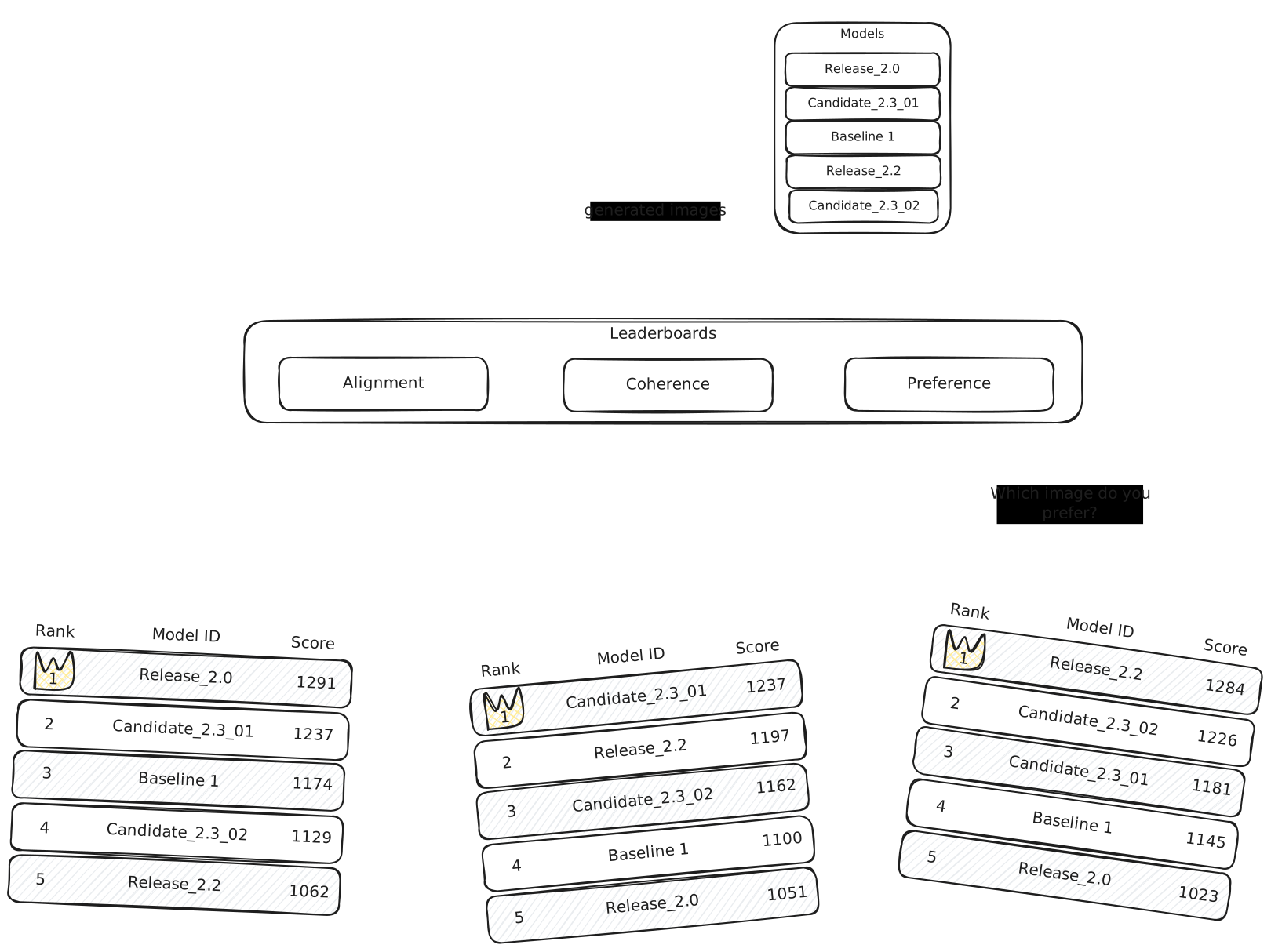
!!! note
Can be used with Images, Videos, Audio, and Text.
Each evaluation aspect results in a leaderboard and these leaderboards are grouped under a benchmark. This allows convenient extensibility because when you would like to evaluate the models under a new criteria, it is as easy as adding a new leaderboard to your benchmark.
## How to use MRI
### 1. Benchmark Creation
You start by creating a benchmark with specific settings:
- **Name**: Identifies your benchmark in the overview
- **Prompts**: A list of prompts that will be used to generate the media to evaluate the models.
Use the `RapidataClient` to authenticate yourself and create a new leaderboard:
```python
from rapidata import RapidataClient
client = RapidataClient()
benchmark = client.mri.create_new_benchmark(
name="AI Art Competition",
prompts=[ # (1)!
"A serene mountain landscape at sunset",
"A futuristic city with flying cars",
"A portrait of a wise old wizard"
]
)
```
1. The prompts used to generate the media that will be evaluated. Models are matched against each other per prompt.
### 2. Leaderboard Creation
Once your benchmark is set up, you can create leaderboards for it.
- **Name**: Identifies your leaderboard in the overview
- **Instruction**: The criteria upon which labelers choose the better model
- **Show Prompt**: Whether to display the prompt to evaluators. Including this option adds complexity and cost, so it is advised to only include it in settings where the prompt is necessary for the labelers to follow the instruction (e.g., prompt alignment).
!!! note
You can find all leaderboards for a benchmark by using the `leaderboards` attribute of the benchmark.
```python
leaderboard = benchmark.create_leaderboard(
name="Realism",
instruction="Which image is more realistic?",
show_prompt=False # (1)!
)
```
1. Whether to display the prompt to evaluators. Only include it when the prompt is necessary for the task (e.g., prompt alignment). It adds complexity and cost.
#### Restricting a leaderboard to a specific audience
By default a leaderboard is answered by the global audience. To restrict
it to a specific group of labelers — for example a [custom
audience](audiences.md) you have trained, or a country/language slice of
one — pass `audience_id`:
```python
from rapidata import CountryFilter, LanguageFilter
base = client.audience.get_audience_by_id("audience_id")
us_english = base.filter([
CountryFilter(["US"]),
LanguageFilter(["en"]),
])
leaderboard = benchmark.create_leaderboard(
name="Realism (US, English)",
instruction="Which image is more realistic?",
audience_id=us_english, # (1)!
)
```
1. Accepts an id string, a `RapidataAudience`, or a `RapidataFilteredAudience` (derived via [`RapidataAudience.filter()`](audiences.md#filtered-audiences)). Omit to use the global audience.
### 3. Model Evaluation
Once your benchmark and leaderboard are set up, you can evaluate models by the following:
- **Media**: Images, videos, or audio files generated by your model
- **Prompts**: Each media file must be paired with a prompt
All prompts must be from the benchmark's registered prompt set (available through the `prompts` attribute of the benchmark)
!!! note
`prompts` returns the prompts as you originally provided them. The English translation of each prompt is available through the `english_prompts` attribute, aligned by index.
!!! note
You are not limited to one media per prompt; you can supply the same prompt multiple times.
```python
benchmark.evaluate_model(
name="MyAIModel_v2.1",
media=[ # (1)!
"https://assets.rapidata.ai/mountain_sunset1.png",
"https://assets.rapidata.ai/mountain_sunset2.png",
"https://assets.rapidata.ai/futuristic_city.png",
"https://assets.rapidata.ai/wizard_portrait.png"
],
prompts=[ # (2)!
"A serene mountain landscape at sunset",
"A serene mountain landscape at sunset",
"A futuristic city with flying cars",
"A portrait of a wise old wizard"
]
)
```
1. Images, videos, or audio files generated by your model.
2. Each media file must be paired with a prompt from the benchmark's registered prompt set. You can supply the same prompt multiple times.
### 3b. Adding Models Without Immediate Submission
If you want to add a model and control when it is submitted for evaluation, use `add_model` instead of `evaluate_model`. This lets you upload media, inspect the participant, and submit on your own schedule.
```python
# Add a model without submitting
participant = benchmark.add_model(
name="MyAIModel_v2.1",
media=[
"https://assets.rapidata.ai/mountain_sunset1.png",
"https://assets.rapidata.ai/futuristic_city.png",
"https://assets.rapidata.ai/wizard_portrait.png"
],
prompts=[
"A serene mountain landscape at sunset",
"A futuristic city with flying cars",
"A portrait of a wise old wizard"
]
)
# Upload additional media to the same participant
participant.upload_media(
assets=["https://assets.rapidata.ai/mountain_sunset2.png"],
identifiers=["A serene mountain landscape at sunset"]
)
# Submit the individual participant
participant.run()
# Or submit all unsubmitted participants at once
benchmark.run()
```
You can also inspect existing participants:
```python
# List all participants
for p in benchmark.participants:
print(p.name, p.status)
```
### 4. Matchmaking and Ranking
MRI creates fair comparisons by:
- **Prompt-based matching**: Only media with the same prompt are compared against each other
- **Mixed evaluation**: New models are matched up with existing models to maximize the information gained
- **User-driven assessment**: Human evaluators compare model outputs based on the instruction to determine rankings
### 5. Results and Visibility
Your leaderboard results are:
- **Directly viewable** on the Rapidata dashboard at [app.rapidata.ai/mri/benchmarks](https://app.rapidata.ai/mri/benchmarks)
- **Continuously updated** as new models are added and evaluated
- **Provides deeper insights** into model performances over time
### Retrieving Existing Benchmarks
You can retrieve benchmarks by ID or search for them:
```python
# Get a specific benchmark by ID
benchmark = client.mri.get_benchmark_by_id("benchmark_id_here")
# Find benchmarks by name
recent_benchmarks = client.mri.find_benchmarks(
name="AI Art",
amount=10
)
```
### Retrieving Results
```python
# Get the leaderboard
leaderboard = benchmark.leaderboards[0]
# Get the standings
standings = leaderboard.get_standings() # Returns a pandas dataframe
```
## Advanced
# Model Ranking Insights Advanced
## Overview
To unlock the full potential of Model Ranking Insights (MRI), you can use the advanced features. These include sophisticated configuration options for benchmarks, leaderboards, and evaluation settings that give you fine-grained control over your model evaluation process.
## Benchmark Configuration
### Using Identifiers
In the MRI quickstart we used the prompts to identify the media and create the appropriate matchups. However, more generally you might not have an exact 1-to-1 relationship between prompts and media (e.g., you may have different settings or inputs for the same prompt - for example input images for image-to-video models. More about this below). To handle this case, we allow you to supply your own identifiers, which will then be used when creating the matchups.
```python
# Example 1: Explicit identifiers
benchmark = client.mri.create_new_benchmark(
name="Preference Benchmark",
identifiers=["scene_1", "scene_2", "scene_3"],
prompts=[
"A serene mountain landscape at sunset",
"A futuristic city with flying cars",
"A portrait of a wise old wizard"
],
prompt_assets=[
"https://assets.rapidata.ai/mountain_sunset.png",
"https://assets.rapidata.ai/futuristic_city.png",
"https://assets.rapidata.ai/wizard_portrait.png"
]
)
# Example 2: Identifiers used for the same prompts but different seeding
benchmark = client.mri.create_new_benchmark(
name="Preference Benchmark",
identifiers=["seed_1", "seed_2", "seed_3"],
prompts=["prompt_1", "prompt_1", "prompt_1"],
prompt_assets=["https://example.com/asset1.jpg", "https://example.com/asset1.jpg", "https://example.com/asset1.jpg"]
)
# Example 3: Using only prompt assets
benchmark = client.mri.create_new_benchmark(
name="Preference Benchmark",
identifiers=["image_1", "image_2", "image_3"],
prompt_assets=["https://example.com/asset1.jpg", "https://example.com/asset2.jpg", "https://example.com/asset3.jpg"]
)
```
!!! note
Media assets are images, videos, or audio files that provide visual or auditory context for your evaluation prompts. For example when evaluating image to video models.
### Tagging System
Tags provide metadata for filtering and organizing benchmark results without showing them to evaluators. These tags can also be set and used in the frontend. To view the frontend, you can use the `view` method of the benchmark or leaderboard.
```python
# Tags for filtering leaderboard results
tags = [
["landscape", "outdoor", "beach"],
["landscape", "outdoor", "mountain"],
["outdoor", "city"],
["indoor", "vehicle"]
]
benchmark = client.mri.create_new_benchmark(
name="Tagged Benchmark",
identifiers=["scene_1", "scene_2", "scene_3", "scene_4"],
prompts=["A sunny beach", "A mountain landscape", "A city skyline", "A car in a garage"],
tags=tags
)
# Filter leaderboard results by tags
standings = leaderboard.get_standings(tags=["landscape", "outdoor"])
```
### Adding prompts and assets after benchmark creation
If you have already created a benchmark and want to add new prompts and assets after the fact. Note however that these will only take effect for new models.
```python
# Adding prompts with assets (one or many, matched up by index)
benchmark.add_prompts(
identifiers=["new_style"],
prompts=["Generate artwork in this new style"],
prompt_assets=["https://assets.rapidata.ai/new_style_ref.jpg"],
tags=[["abstract", "modern"]]
)
```
## Leaderboard Configuration
### Inverse Ranking
For evaluation questions where lower scores are better (e.g., "Which image is worse?"), use inverse ranking.
```python
leaderboard = benchmark.create_leaderboard(
name="Quality Assessment",
instruction="Which image has lower quality?",
inverse_ranking=True, # Lower scores = better performance
show_prompt=True,
show_prompt_asset=True
)
```
### Level of Detail
Controls the number of comparisons performed, affecting accuracy vs. speed.
```python
# Different detail levels
leaderboard_fast = benchmark.create_leaderboard(
name="Quick Evaluation",
instruction="Which image do you prefer?",
level_of_detail="low" # Fewer comparisons, faster results
)
leaderboard_precise = benchmark.create_leaderboard(
name="Precise Evaluation",
instruction="Which image do you prefer?",
level_of_detail="very high" # More comparisons, higher accuracy
)
```
### Prompt and Asset Display
Control what evaluators see during comparison.
```python
leaderboard = benchmark.create_leaderboard(
name="Context-Aware Evaluation",
instruction="Which generated image better matches the prompt?",
show_prompt=True, # Show the original text prompt
show_prompt_asset=True, # Show reference images/videos
level_of_detail="medium"
)
```
## Participant Management
### Listing Participants
You can list all participants in a benchmark using the `participants` property:
```python
for participant in benchmark.participants:
print(f"{participant.name} - {participant.status}")
```
### Submitting Participants
When using `add_model`, participants are created in the `CREATED` state and are not yet submitted for evaluation. You can submit them individually or in bulk:
```python
# Submit a single participant
participant = benchmark.add_model(
name="ModelA",
media=["https://example.com/img1.png"],
identifiers=["scene_1"]
)
participant.run()
# Or add multiple models and submit them all at once
benchmark.add_model(name="ModelB", media=["https://example.com/img2.png"], identifiers=["scene_1"])
benchmark.add_model(name="ModelC", media=["https://example.com/img3.png"], identifiers=["scene_1"])
benchmark.run() # Submits all participants in CREATED state
```
### Inspecting a Participant's Elo
Each participant has an Elo score aggregated across all of the benchmark's leaderboards. Read it directly from the participant:
```python
participant = benchmark.participants[0]
elo = participant.get_elo() # None if not computed yet
print(f"{participant.name}: {elo}")
```
### Renaming a Participant
```python
participant = benchmark.participants[0]
participant.rename("New model name")
```
### Disabling Participants
A disabled participant is excluded from evaluation and the computed standings. Unlike deleting, this is reversible:
```python
participant = benchmark.participants[0]
participant.disable()
# Bring it back into the evaluation later
participant.enable()
```
### Deleting Participants
You can remove a participant — and its uploaded media — from the benchmark. This cannot be undone:
```python
participant = benchmark.participants[0]
participant.delete()
```
## References
- [RapidataBenchmarkManager](/reference/rapidata/rapidata_client/benchmark/rapidata_benchmark_manager/)
- [RapidataBenchmark](/reference/rapidata/rapidata_client/benchmark/rapidata_benchmark/)
- [RapidataLeaderboard](/reference/rapidata/rapidata_client/benchmark/leaderboard/rapidata_leaderboard/)
- [BenchmarkParticipant](/reference/rapidata/rapidata_client/benchmark/participant/participant/)
# Flows
## Ranking Flows
# Ranking Flows
## Overview
Ranking Flows provide a lightweight way to continuously rank items using human comparisons without the overhead of creating full jobs. They are ideal for ongoing evaluation where new items are added over time and ranked against each other in a specified time frame (ttl). Each ranking uses the configuration of the flow but is fully independent of the other rankings.
!!! note
Can be used with Images, Videos, Audio, and Text.
## How to use Ranking Flows
### 1. Create a Flow
Start by creating a ranking flow with an instruction that will be shown to evaluators for each comparison:
```python
from rapidata import RapidataClient
client = RapidataClient()
flow = client.flow.create_ranking_flow(
name="Image Quality Ranking",
instruction="Which image looks better?",
)
```
You can optionally configure a **response threshold range** to control how many pairwise comparison responses are collected per flow item:
- `max_response_threshold` (default `100`): The target number of responses. The system will try to collect up to this many responses for each flow item.
- `min_response_threshold` (default = `max_response_threshold`): The minimum number of responses you are willing to accept. If the `time_to_live` expires and fewer than `min_response_threshold` responses have been collected, the flow item is marked as **Incomplete**. If at least `min_response_threshold` responses have been collected, it is marked as **Completed**.
```python
flow = client.flow.create_ranking_flow(
name="Image Quality Ranking",
instruction="Which image looks better?",
max_response_threshold=200, # (1)!
min_response_threshold=50, # (2)!
)
```
1. The target number of responses. The system will try to collect up to this many responses for each flow item.
2. The minimum acceptable response count. If `time_to_live` expires with fewer than this, the flow item is marked as **Incomplete**; otherwise it's **Completed**.
### 2. Add a Flow Batch
Submit datapoints to the flow by creating a batch. Each batch uploads a set of items that will be compared and ranked:
```python
flow_item = flow.create_new_flow_batch(
datapoints=[
"https://example.com/image_a.jpg",
"https://example.com/image_b.jpg",
"https://example.com/image_c.jpg",
],
)
```
You can optionally provide a `context` and a `time_to_live`:
```python
flow_item = flow.create_new_flow_batch(
datapoints=[
"https://example.com/image_a.jpg",
"https://example.com/image_b.jpg",
"https://example.com/image_c.jpg",
],
context="These images were generated by model X", # (1)!
time_to_live=300, # (2)!
)
```
1. Shown alongside the instruction for each comparison.
2. Automatically stops the flow item after this many seconds (minimum 60) and returns partial results.
### 3. Get Results
Call `get_results()` on a flow item to retrieve the ranking results. If the flow item is still processing, this will automatically wait until it completes (or becomes incomplete due to `time_to_live`):
```python
results = flow_item.get_results()
```
This returns a `FlowItemResult`. For the batch above it looks like this:
```python
FlowItemResult(
datapoints={
"https://example.com/image_a.jpg": 1243,
"https://example.com/image_b.jpg": 1102,
"https://example.com/image_c.jpg": 987,
},
total_votes=150,
)
```
It has two fields:
- `datapoints`: a mapping of each item to its score. The score is a [Bradley–Terry](https://en.wikipedia.org/wiki/Bradley%E2%80%93Terry_model) strength estimate fitted over all pairwise comparisons, then mapped onto an Elo-style scale (default starting score 1200) so the values read like familiar Elo ratings. Items are keyed by their source URL when provided, otherwise by their original filename. A higher score means the item was preferred more often across comparisons.
- `total_votes`: the total number of pairwise comparisons collected across all items.
Access the fields directly:
```python
ranking = results.datapoints # {"https://example.com/image_a.jpg": 1243, ...}
votes = results.total_votes # 150
# Items sorted from best to worst
ranked = sorted(results.datapoints.items(), key=lambda item: item[1], reverse=True)
```
You can also check the status without blocking:
```python
status = flow_item.get_status() # Pending, Running, Completed, Failed, Stopped, or Incomplete
```
!!! note
A flow item enters the `Incomplete` state when its `time_to_live` expires before all responses are collected. You can still retrieve partial results from incomplete flow items.
To get the win/loss matrix per flow item and see what datapoints were preferred over each other:
```python
matrix = flow_item.get_win_loss_matrix()
```
This returns a pandas `DataFrame` where `matrix.loc[a, b]` is the number of times item `a` was preferred over item `b`.
To get the total number of pairwise comparison responses collected for a flow item:
```python
response_count = flow_item.get_response_count()
```
To query all flow items for a flow:
```python
all_items = flow.get_flow_items()
```
### 4. Update Flow Configuration
You can update the flow configuration at any time:
```python
flow.update_config(
instruction="Which image has higher visual quality?",
)
```
!!! note
This config will only affect new flow items and not modify existing ones.
### Preheating
If you need low-latency responses for upcoming flow items, you can preheat the system beforehand:
```python
client.flow.preheat()
```
This warms up internal resources so that subsequent flow batches are processed faster. Call it around 5 minutes before submitting time-sensitive batches.
### Retrieving Existing Flows
You can retrieve flows by ID or list your recent flows:
```python
# Get a specific flow by ID
flow = client.flow.get_flow_by_id("flow_id_here")
# List recent flows
recent_flows = client.flow.find_flows(amount=10)
```
### Deleting a Flow
```python
flow.delete()
```
# AI Agents
## AI Agents
# Rapidata in your AI agent
Let your coding agent write the Rapidata integration for you. The official Rapidata skill teaches agents how to use the SDK — create labeling jobs, configure audiences, run benchmarks, and more — so you can just describe what you want in plain English.
## Install
Pick your agent. One command. Done.
| Agent | Install |
|-------|---------|
| **Claude Code** | `claude plugin marketplace add RapidataAI/skills && claude plugin install rapidata-sdk-plugin@rapidata-sdk-marketplace` |
| **Cursor** | `npx skills add RapidataAI/skills -a cursor` |
| **Windsurf** | `npx skills add RapidataAI/skills -a windsurf` |
| **Copilot** | `npx skills add RapidataAI/skills -a github-copilot` |
| **Cline** | `npx skills add RapidataAI/skills -a cline` |
| **Codex** | `npx skills add RapidataAI/skills -a codex` |
| **Gemini CLI** | `npx skills add RapidataAI/skills -a gemini-cli` |
| **Any other** | `npx skills add RapidataAI/skills` |
Install once. Works in every session after that. That's it.
??? note "No install — just the raw SKILL.md"
If your framework doesn't match any of the above, drop the raw file into your agent's context:
[**SKILL.md on GitHub**](https://github.com/RapidataAI/skills/blob/main/plugins/rapidata-sdk-plugin/skills/rapidata/SKILL.md)
Raw URL for fetching:
```
https://raw.githubusercontent.com/RapidataAI/skills/main/plugins/rapidata-sdk-plugin/skills/rapidata/SKILL.md
```
## Usage
### Automatic
The agent loads the skill when it sees Rapidata-related work. Just ask naturally:
```
Create a comparison job that evaluates image quality between two models
```
```
Set up a custom audience with 3 qualification examples for prompt adherence
```
### Manual
On Claude Code, invoke the skill directly:
```
/rapidata
```
```
/rapidata How do I set up early stopping with a confidence threshold?
```
Other agents follow their own conventions — Cursor rules, Copilot instructions, etc. The skill activates whenever the file is loaded into context.
## Keeping the skill up to date
The Rapidata SDK evolves constantly — new task types, new audience features, better defaults. Pull the latest version so your agent stays in sync.
**Claude Code**:
```bash
claude plugin marketplace update
```
**Everything else**:
```bash
npx skills update rapidata
```
Or update every skill you've installed at once:
```bash
npx skills update
```